
How to Render Mermaid Diagrams as SVG (and Stop Looking Like Every Other README)
A practical guide to rendering Mermaid as SVG — from the official CLI to custom themes, font fixes, dark mode, and the fastest path when you don't want to tune anything.
TL;DR Mermaid renders to SVG natively — but the default output usually isn't what you want in a README, slide, or doc. This post walks through the official
mmdcCLI, the four theming knobs that actually matter, the three rendering pitfalls everyone hits (fonts, viewBox, dark mode), and the fastest path when you don't want to fight with config. There's a live editor at the end if you want to skip ahead.
The problem nobody talks about
Mermaid is the de-facto "diagrams as code" choice in 2026 — GitHub, Notion, Obsidian, Docusaurus, GitLab, every static site generator worth its salt renders it natively.
That's the good news.
The bad news: 95% of Mermaid diagrams in the wild look exactly the same. Pastel pinks and blues, Comic-Sans-adjacent fonts, edges crossing nodes, arrowheads that don't quite point at anything. You've seen them. You've probably shipped some.
It's not a Mermaid problem — it's a defaults problem. The renderer is optimized for "something showed up", not "this is presentable".
Why SVG and not PNG
| Property | SVG | PNG |
|---|---|---|
| Scales without blur | ✅ | ❌ |
| Accessible (text selectable) | ✅ | ❌ |
Adapts to dark mode (currentColor) | ✅ | ❌ |
| Searchable in your repo | ✅ | ❌ |
Approach 1: The official Mermaid CLI
# Run without installing
npx @mermaid-js/mermaid-cli -i diagram.mmd -o diagram.svg

# Or install globally
npm install -g @mermaid-js/mermaid-cli
mmdc -i diagram.mmd -o diagram.svgThe four theming knobs that actually matter
1. theme (the cheapest win)
Built-in Mermaid themes: default, forest, dark, neutral, base. Pick base if you want to customize from scratch.
2. themeVariables
Six variables actually matter: primaryColor, primaryTextColor, primaryBorderColor, lineColor, fontFamily, fontSize. Set those well, ignore the other 50.
3. Edge curves
Change edge curves from the default to linear or step. The default basis everywhere is one of the top reasons README diagrams look amateur.
4. Layout direction
Pick based on reading flow. LR for pipelines, TD for hierarchies.
Three rendering pitfalls
Fonts don't render in the saved SVG
Use a system font stack: -apple-system, BlinkMacSystemFont, "Segoe UI", system-ui, sans-serif.
viewBox cropping
Post-process to add padding:
function padViewBox(svgString, padding = 16) {
  return svgString.replace(
    /viewBox="(-?\d+\.?\d*) (-?\d+\.?\d*) (\d+\.?\d*) (\d+\.?\d*)"/,
    (_, x, y, w, h) => {
      const nx = parseFloat(x) - padding;
      const ny = parseFloat(y) - padding;
      const nw = parseFloat(w) + padding * 2;
      const nh = parseFloat(h) + padding * 2;
      return `viewBox="${nx} ${ny} ${nw} ${nh}"`;
    }
  );
}Dark mode is hardcoded
Replace fixed colors with currentColor:
function makeAdaptive(svgString) {
  return svgString
    .replace(/stroke="#[0-9a-fA-F]{6}"/g, 'stroke="currentColor"')
    .replace(/fill="#[0-9a-fA-F]{6}"/g, 'fill="currentColor"');
}When DIY stops being worth the time
Everything above works. I've shipped this exact pipeline.
It also takes about a day of fiddling to get right, and the result is one diagram style that you maintain forever. The moment you want a different style for a different context — a slide deck vs. a README vs. a postmortem — or someone non-technical on the team wants to make a diagram, the cost-benefit shifts.
Three signals it's time to stop hand-rolling:
- You're maintaining a "diagram theme" file across multiple repos.
- You want a different look for slides vs. docs vs. PRs, but the diagram source stays the same.
- Your inputs aren't just Mermaid — PlantUML, draw.io, AI prompts.
Beauty Diagram is a web editor for Mermaid, PlantUML, and draw.io. Paste your source, pick from 9 production themes, export SVG or PNG. No config files. (Disclosure: I work on it.)
Open the editor →The fastest path is the web editor:
- Paste your Mermaid source on the left.
- Pick a theme from nine:
classic,modern,atlas,blueprint,memphis,obsidian,slate,brutalist,atelier. Each is a complete design language — typography, palette, edge style, node treatment — tuned so the diagram reads as a finished asset, not a default render. - Export SVG (vector for docs / repos) or PNG (
standard/high/maxquality for slides and social). - Share to get a public hot-linkable URL with an OG preview — drop it into Notion or Linear and it stays live as you edit.
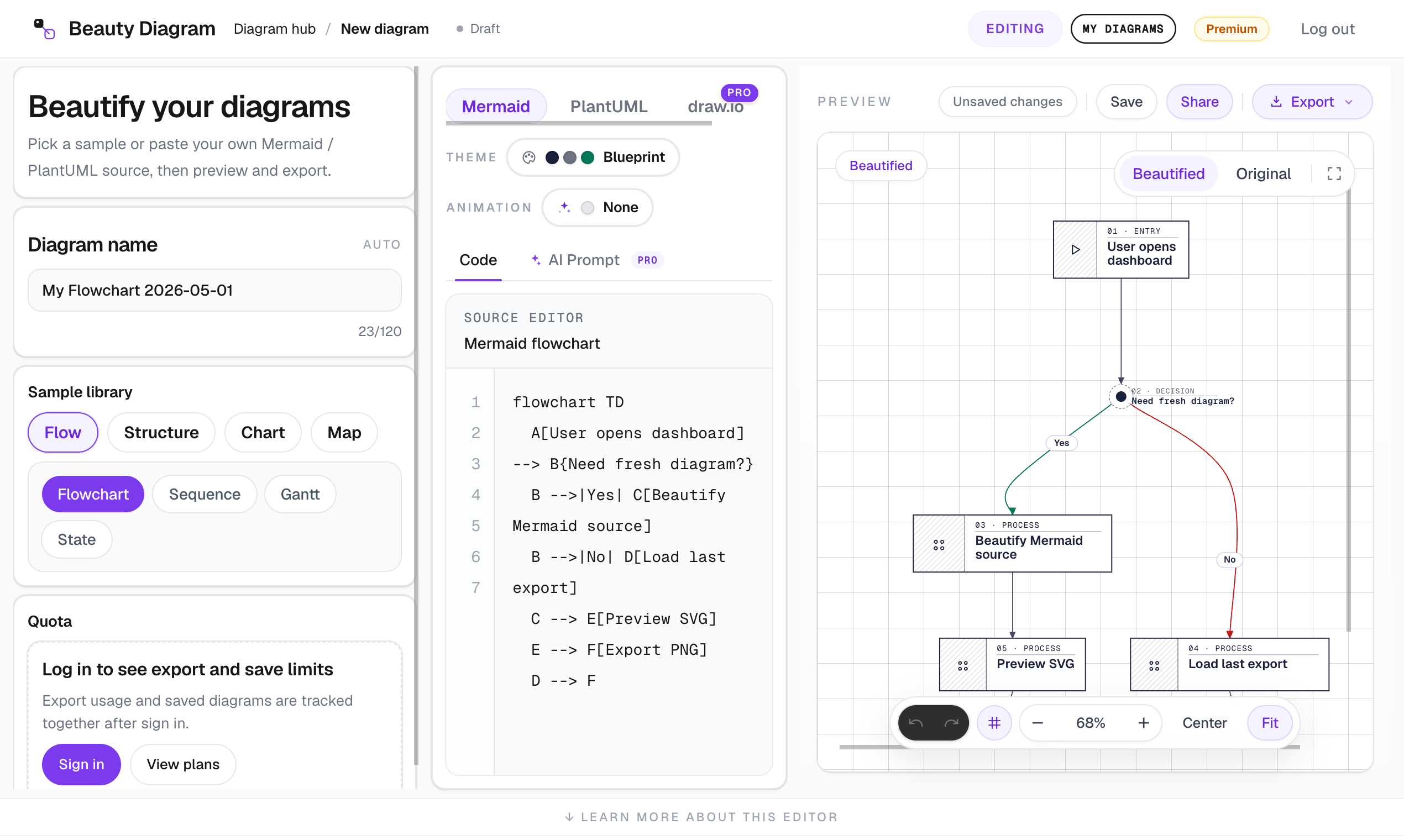
The whole loop in one screen: paste Mermaid (or PlantUML / draw.io), pick a theme from the row above, watch the preview rerender, then Save / Share / Export.
That's the whole loop. No themeVariables JSON to maintain. No post-processing scripts. The same renderer powers a CLI if you'd rather automate:
# Render once, ship to your repo
npx @beauty-diagram/cli beautify flow.mmd --theme modern --out flow.svg

# Export at higher quality for slides
npx @beauty-diagram/cli export flow.mmd --theme atlas --format png --quality max --out flow.png

# Get a public share URL (with OG preview baked in)
npx @beauty-diagram/cli share flow.mmd --theme modern --title "Auth flow"The CLI exposes the same nine themes (bd themes lists them). It does not expose per-variable overrides — the philosophy is that the theme is the choice; you don't tune a theme, you pick a different one. For most readers this is a feature, not a limitation.
Wrap-up
Mermaid's defaults aren't bad — they're designed for "the diagram exists" rather than "the diagram is finished". The fixes break down into roughly three tiers:
- Cheap and fine for one style: switch
theme: 'base', set six theme variables, change edge curves, run a viewBox-padding regex. - Annoying past one repo: maintain that config across many surfaces.
- Use a tool: paste, pick, export.
Where you land depends on how much you care about diagrams and how often you ship them.
If this was useful, drop a ❤️ and follow — I'm posting weekly on diagrams, docs, and developer ergonomics. Next week: why your GitHub README diagrams look amateur, and the four fixes that take 10 minutes.
What's the worst Mermaid diagram you've shipped? Drop a screenshot in the comments — I'll write up the most common issues in a follow-up.
Continue reading
Convert draw.io Files to Production-Ready SVG (Without the Default Look)
draw.io's Export → SVG dialog ships a 400 KB blob of embedded fonts and foreign-object text. The path from cleaner native exports to treating the .drawio XML as source and re-rendering it.
Adding Beautiful Diagrams to Your Docusaurus / VitePress Site
Enabling Mermaid in Docusaurus or VitePress takes ten minutes. Making the diagrams stop looking generic takes another thirty. The whole path — plugin config, theming, and when to swap the renderer.