
Adding Beautiful Diagrams to Your Docusaurus / VitePress Site
Enabling Mermaid in Docusaurus or VitePress takes ten minutes. Making the diagrams stop looking generic takes another thirty. The whole path — plugin config, theming, and when to swap the renderer.
TL;DR Docusaurus and VitePress both render Mermaid, but the defaults ship the same washed-out pastel diagrams as everyone else's docs. The 10-minute fix is enabling the built-in Mermaid support; the 30-minute fix is picking a theme once at the renderer instead of pasting
%%{init}%%into every block. This post walks both — plugin install, theme config, and the moment it's worth swapping the renderer entirely for a hosted embed URL.
The doc site tax on Mermaid diagrams
You picked Docusaurus or VitePress because you wanted a doc site that looked considered. Sans-serif that isn't Times New Roman. A sidebar that respects your section hierarchy. Code blocks with a syntax highlighter that isn't from 2012.
Then you dropped in your first Mermaid diagram and the doc suddenly looked like every other Mermaid-in-docs page on the internet. Pale blue nodes on white. Thin grey edges. A font that doesn't match anything else on the page. The diagram is technically there, but visually it reads as a screenshot from a different site someone pasted in.
That's the doc-site tax on Mermaid. The renderer is shared across every project that ships the default config, so every doc site looks the same. This post is how to get out of that shared bucket without leaving Mermaid.
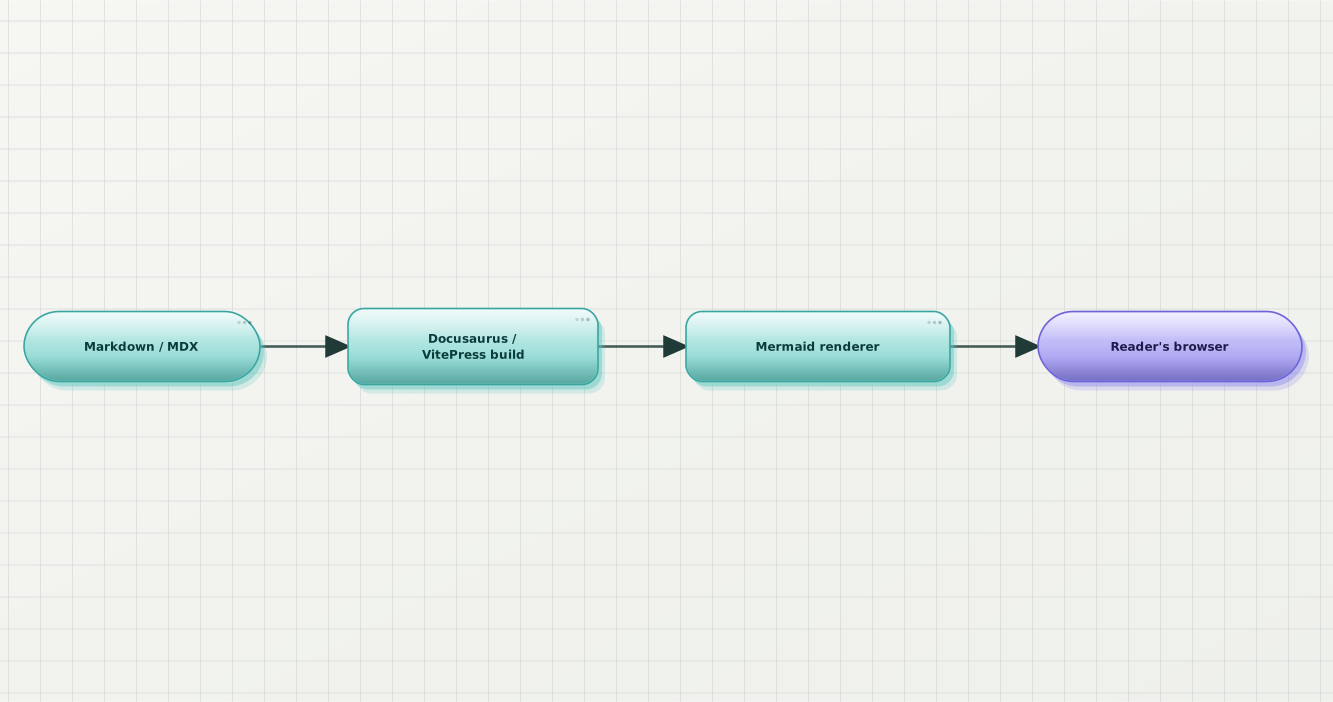
The path a Mermaid block takes from your repo to the reader. Every stage after "Markdown" is somewhere you can influence the visual — most people only ever touch the first one.
Where the rendering actually happens
Both Docusaurus and VitePress bundle a client-side Mermaid runtime. When the doc site builds, fenced ```mermaid blocks stay as source text in the generated HTML; a small JS bundle on the page finds them at load time and calls mermaid.render() to swap the source for an inline SVG.
This matters because the theme decision runs at three different altitudes, and the trick is knowing which one applies:
- In the source — a
%%{init}%%block at the top of one Mermaid block, applied to that block only. - In the site config — one Mermaid config passed to the doc-site plugin, applied to every block.
- Outside the renderer entirely — pre-render each diagram to SVG and embed the image, bypassing the client Mermaid bundle.
Each altitude trades off different things: reach, consistency, and how much control you have over the styling. I'll walk all three.
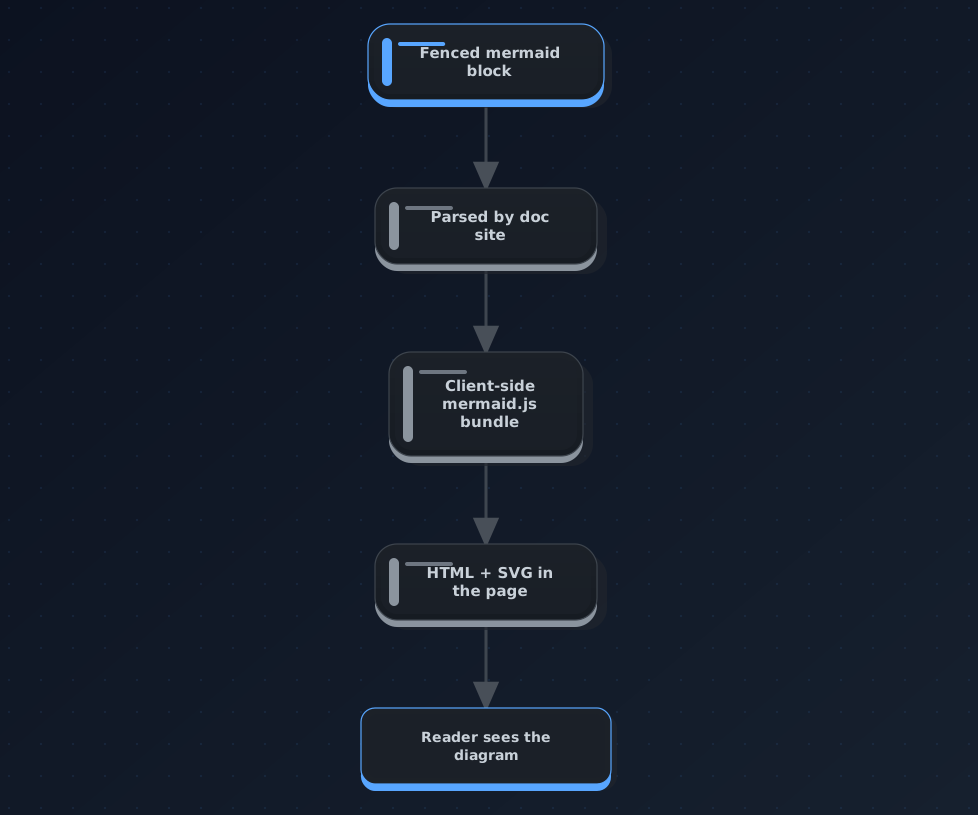
Where the Mermaid render happens in a doc site. The theme decision can land at any of these steps; the higher up you push it, the more it applies to.
Path 1: enable Mermaid, accept defaults
Both frameworks make the enable-Mermaid step short. This is the ten-minute baseline every subsequent choice builds on.
Docusaurus
Install the official Mermaid theme:
npm install @docusaurus/theme-mermaidIn docusaurus.config.js, enable it and switch on the Markdown flag:
export default {
  markdown: {
    mermaid: true,
  },
  themes: ['@docusaurus/theme-mermaid'],
};That's it. Every ```mermaid block in your MDX files now renders. Docusaurus ships this as a first-party theme, so there's no third-party plugin to babysit through major version bumps.
VitePress
VitePress doesn't ship Mermaid built in, but the community plugin has been stable for years. Install it:
npm install -D vitepress-plugin-mermaid mermaidIn .vitepress/config.ts, wrap your existing config with withMermaid:
import { withMermaid } from "vitepress-plugin-mermaid";

export default withMermaid({
  // your existing vitepress config...
  title: "My Docs",
  description: "…",
  mermaid: {
    // mermaid config goes here — leave empty for defaults
  },
});The mermaid key is where every theme decision at the site-config altitude lives. Empty object = Mermaid's default look, which is the same pastel you're trying to escape from. Which brings us to path 2.
Path 2: keep Mermaid, pick a theme once
Mermaid has five built-in themes: default, neutral, dark, forest, and base. The first four are pre-set palettes; base is the one you use as a foundation when you want to override individual variables.
Two ways to apply them.
The site-config way (the one you actually want)
Docusaurus takes a themeConfig.mermaid object with two useful keys:
export default {
  markdown: { mermaid: true },
  themes: ['@docusaurus/theme-mermaid'],
  themeConfig: {
    mermaid: {
      theme: { light: 'neutral', dark: 'dark' },
    },
  },
};theme accepts light/dark variants matched to the site's colour mode. neutral is a good pick if the default pastel bothers you but you don't want to design a palette yourself — it's monochrome, so it never fights the site's brand.
VitePress takes the same options nested under the mermaid key of the withMermaid wrapper:
export default withMermaid({
  mermaid: {
    theme: 'forest',
    themeVariables: {
      primaryColor: '#f8fafc',
      primaryTextColor: '#1e293b',
      primaryBorderColor: '#cbd5e1',
      lineColor: '#64748b',
      fontFamily: 'ui-sans-serif, system-ui, sans-serif',
    },
  },
});Note: VitePress forces the dark Mermaid theme in dark mode regardless of what you set here — this comes from the plugin, not your config. If you need site-config dark control, use per-page mermaidTheme: frontmatter (see below) as an override.
For both, if you want an actually opinionated look, use theme: 'base' and set themeVariables. That combination is the escape hatch: base disables Mermaid's bundled palettes so your variable overrides stop being silently no-op'd. The five variables that carry 80% of the aesthetic are primaryColor, primaryTextColor, primaryBorderColor, lineColor, and fontFamily.
The per-block way (avoid if you can)
You can also drop %%{init}%% at the top of a single block:
%%{init: { "theme": "base", "themeVariables": { "primaryColor": "#f1f5f9" } }}%%
flowchart LR
A[Request] --> B[Handler] --> C[Response]VitePress additionally supports per-page overrides via frontmatter:
---
mermaidTheme: forest
title: Auth architecture
---Per-block init is fine for one diagram that needs to look different — an on-call runbook that should read as an alert, a post-mortem where you want a warmer palette. It's a trap when you use it as the default styling mechanism. Every new block needs the same prelude pasted in. Six months later, half the diagrams have the prelude and half don't, and the ones that don't render as the pastel you were trying to get rid of.
The rule I use: if the styling belongs on more than one block, it belongs in the site config. Only reach for %%{init}%% for the diagram that's genuinely different.
The scaling ceiling for path 2
Path 2 gets you a long way. For most doc sites, "pick neutral and set a font family" is enough — the diagrams stop looking generic, they match the site's typography, and you don't have to think about it again.
Three signals it's not enough:
- You want the same diagrams rendered consistently across your doc site, the project README on GitHub, and social share previews. Mermaid's site config only reaches diagrams inside your Docusaurus/VitePress site. GitHub uses its own hardcoded Mermaid theme; social preview crawlers don't run the Mermaid bundle at all.
- You need control over layout, not just palette. Mermaid's theme variables let you change colours and fonts. Node shape, edge routing style, spacing between subgraphs, marker size — those are the layout engine's job, and the built-in themes don't expose them.
- You want the doc-site build to stay fast. The Mermaid runtime bundle isn't tiny; on a docs page with a dozen fenced blocks, the JS parse + client render is measurable in the Lighthouse "unused JavaScript" panel.
When any of those apply, path 3 is worth twenty minutes of setup.
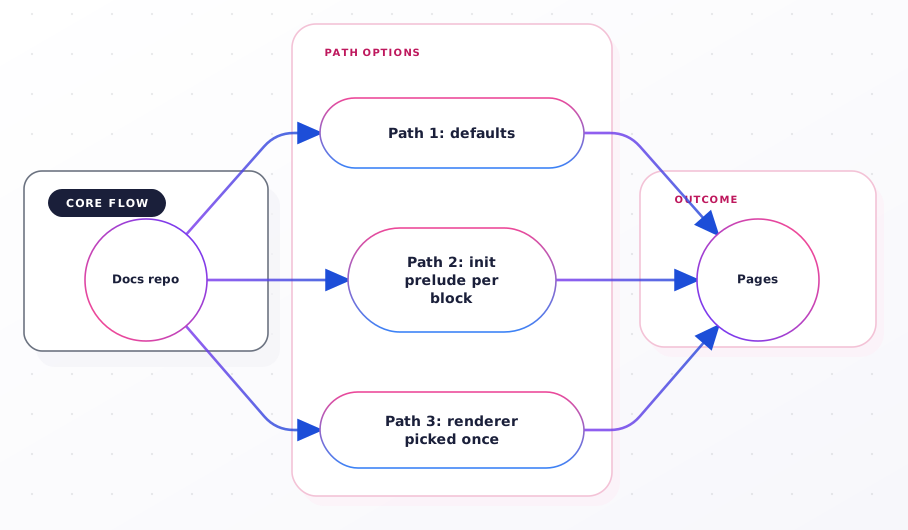
Three altitudes for the theme decision. The right one is whichever matches how many diagrams the choice needs to reach.
Path 3: swap the renderer, embed the SVG
The idea: stop asking the doc site's Mermaid runtime to render at all. Pre-render each diagram to SVG somewhere else, then reference the URL as a regular <img src>. The doc site treats it as any other image — no bundle weight, no theme inheritance, no client parse.
The Web UI is where I'd start. Paste a Mermaid block into the Beauty Diagram editor, cycle through the nine production themes — classic, modern, atlas, blueprint, memphis, obsidian, slate, brutalist, atelier — and pick the one that fits the doc's mood. Save the share; the resulting URL is a hotlinkable SVG that renders in any Markdown or MDX file. (Disclosure: I work on Beauty Diagram.)
For power users and CI setups, the CLI has an embed-url command that skips the browser:
npx @beauty-diagram/cli embed-url auth-flow.mmd --theme atelier
# → https://www.beauty-diagram.com/s/abc123.svgIn a Docusaurus or VitePress markdown file, that URL becomes:
The image renders inline; the doc site's Mermaid bundle doesn't need to run for this block; the render is deterministic from the source; and the same URL works on GitHub, in Notion, in a social preview crawl. One fewer thing depending on the doc site's runtime.
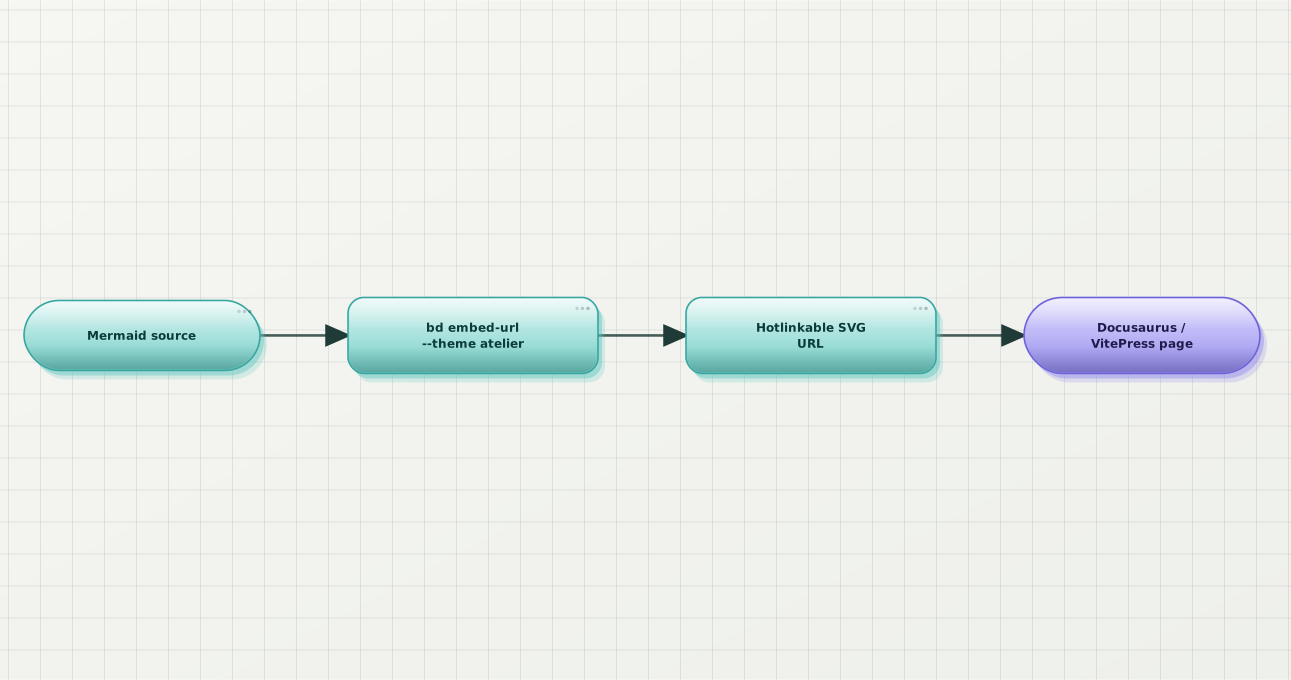
The embed-URL flow. The renderer is the CLI; the doc site is just serving an image.
Two examples of what the themes look like on the same five-node flow:
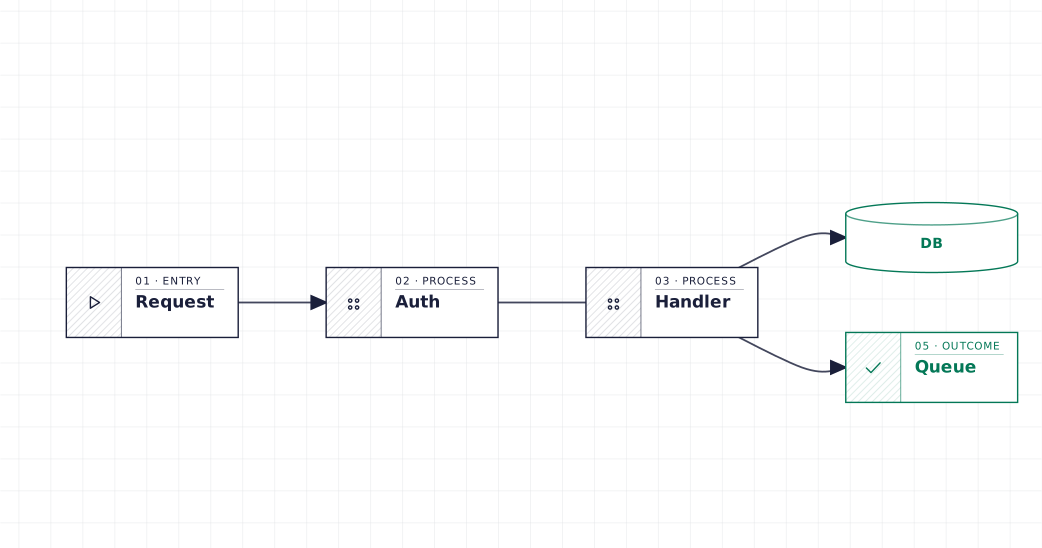
Blueprint. For engineering deep-dives where the diagram should read as a schematic.
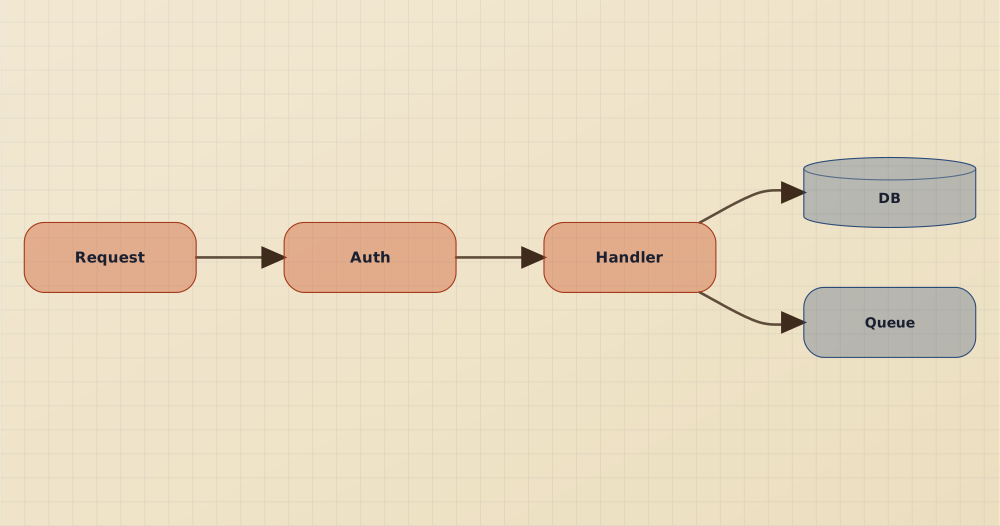
Atelier. For product docs and launch pages where you want the diagram to sit next to prose without shouting.
Same source, different renderer, no ```mermaid block on the page at all. The doc site's job shrinks to "serve markdown with an image tag".
When each path is right
| Signal | Path 1 (defaults) | Path 2 (site config) | Path 3 (embed URL) |
|---|---|---|---|
| One-off internal wiki | ✅ | ||
| Team doc site with a design language | ✅ | ||
| Diagrams shared to README + Notion + docs | ✅ | ||
| Care about bundle size on doc pages | ✅ | ||
| Want per-diagram layout control | ✅ | ||
| Prefer everything as code in the repo | ✅ | ✅ |
The paths aren't exclusive. In practice I use path 2 for 90% of blocks (neutral theme, one font-family override) and path 3 for the 10% that need to travel outside the doc site — the architecture diagram that's referenced from the README, the sequence diagram that shows up in a launch tweet, the flow chart that gets pasted into a Notion doc for the ops team.
The way to know you're using path 2 well: you haven't touched the Mermaid config in six months and the diagrams still look intentional. The way to know you need path 3: you've started drafting the same diagram twice — once in the doc site, once as a rendered PNG for the README.
Wrap-up
Three takeaways:
- Enabling Mermaid in Docusaurus or VitePress is the ten-minute step, not the win. The default look is what everyone else's doc site ships. Pick a theme in the site config — even
neutralis better than the default pastel. - Push the theme decision as high as it will go. Per-block
%%{init}%%is fine for exceptions; the default styling belongs inthemeConfig.mermaid(Docusaurus) or themermaidkey ofwithMermaid(VitePress). One place to change; every block picks it up. - When the diagram needs to leave the doc site — README, Notion, social — swap the renderer entirely. A hotlinkable SVG URL doesn't care what site is embedding it, and the doc-site build stays lean.
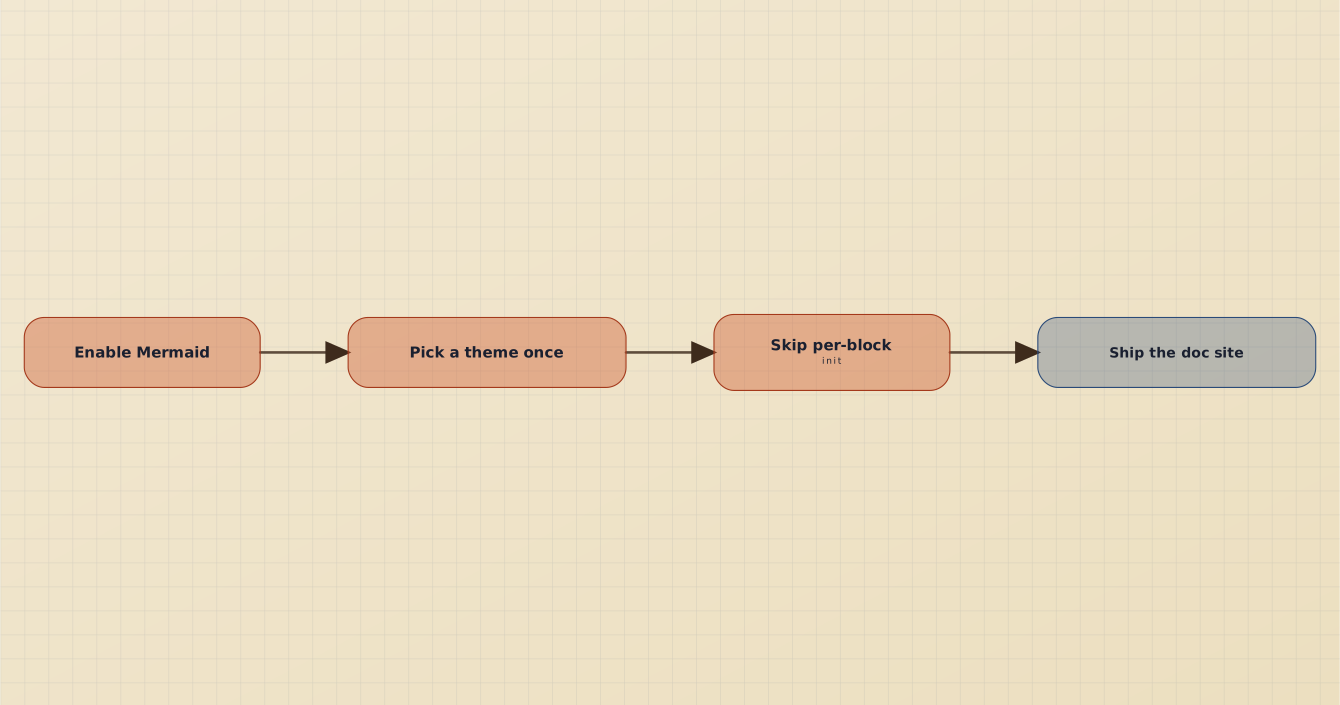
The shortest path through this post: enable, theme once, resist the %%{init}%% prelude, ship.
If this was useful, drop a ❤️ and follow — I'm posting weekly on diagrams, docs, and developer ergonomics. Next week: Convert draw.io Files to Production-Ready SVG (Without the Default Look).
What's the ugliest default Mermaid diagram currently sitting in a doc site you own? I'm curious whether the pastel-on-white default is universally hated or whether some people actually pick it on purpose.
Continue reading
Convert draw.io Files to Production-Ready SVG (Without the Default Look)
draw.io's Export → SVG dialog ships a 400 KB blob of embedded fonts and foreign-object text. The path from cleaner native exports to treating the .drawio XML as source and re-rendering it.
How to Beautify and Theme Mermaid Diagrams in Obsidian & VS Code
The default pastel preview undermines the note you're polishing. Two plugins put a themed Mermaid renderer in the same pane — no round-trip to a web tool. Setup for both, plus the per-file options.