
How to Beautify and Theme Mermaid Diagrams in Obsidian & VS Code
The default pastel preview undermines the note you're polishing. Two plugins put a themed Mermaid renderer in the same pane — no round-trip to a web tool. Setup for both, plus the per-file options.
TL;DR Mermaid is great until you preview it in the editor you actually write in. Obsidian and VS Code (plus Cursor / Windsurf / VSCodium) all ship a default pastel renderer that fights the rest of your note or doc. This post walks the two install paths — Obsidian community plugin and VS Code Marketplace — shows the in-place "pick a theme, preview re-renders" loop in each, and covers the per-file front-matter knobs (
bd-share,bd-width) that control output without leaving the editor.
The "almost good enough" preview problem
You're in Obsidian writing an architecture note. Or you're in VS Code drafting a doc PR. You paste a Mermaid block — flowchart LR and four nodes — toggle preview, and the diagram appears. Functional. Readable. Off-key.
The default Mermaid renderer in both surfaces ships with the same pastel palette, the same flat edges, and the same uniform stroke weight that every other tool ships. In a polished note about your auth system, the diagram reads like a placeholder. The thing you were trying to communicate clearly is now the one element on the page that looks unfinished.
The fix most people try first: keep editing the source in their editor, then round-trip through a web renderer for the screenshot, paste the image back, repeat on every change. The diagram stops drifting visually, but the source of truth fragments — your .md file has Mermaid syntax that no longer matches the embedded image, and every edit becomes a 90-second context switch.
The cleaner fix is keep the source in the editor, and put a themed renderer in the same pane. That's what this post is about.
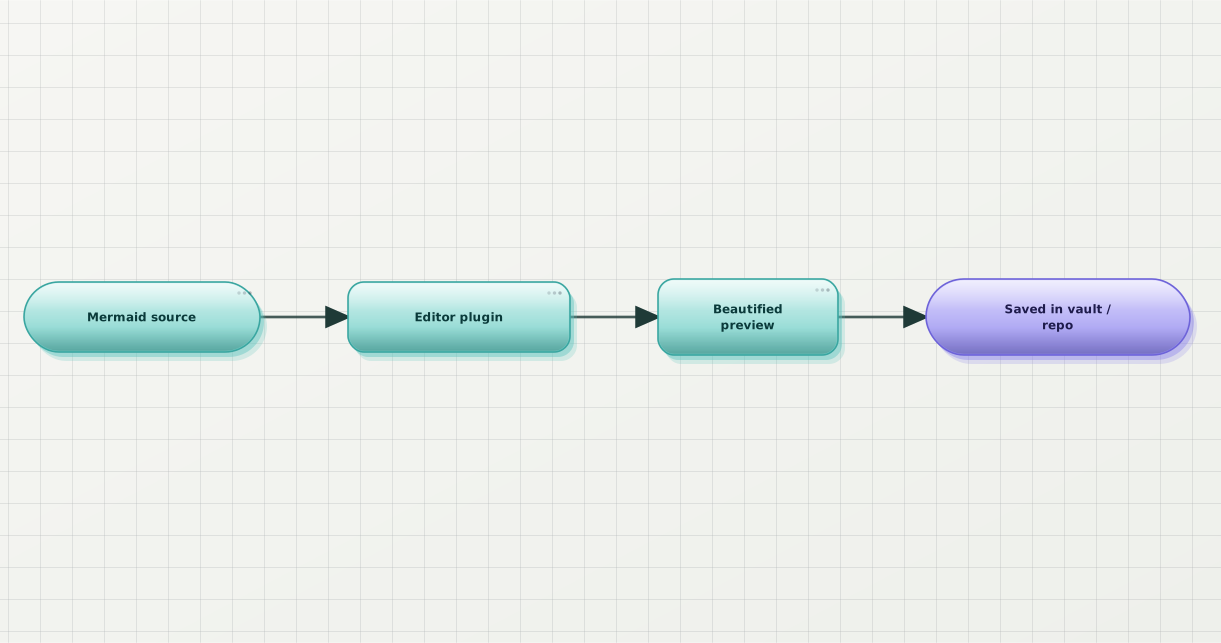
The in-editor loop. Source stays put; the preview pane is where the styling happens; saving the note or committing the file captures the themed output without a separate export step.
Why the default Mermaid theme falls flat
Before going into the plugins, it's worth being concrete about what "off-key" means — because if the only thing wrong with the default were "I don't like the colours", a CSS tweak would solve it.
Three things compound:
- One theme across every diagram type. Mermaid's defaults apply the same palette to flowcharts, sequence diagrams, ER diagrams, state machines, and Gantt charts. A palette tuned for one is rarely tuned for all five.
- No visual hierarchy on edges. Every edge is the same stroke weight and the same colour. In a flow where some edges are "happy path" and some are "error / retry", the reader has to decode that from labels alone.
- Defaults read as defaults. Once a reader has seen the pastel-Mermaid look on three other sites that day, your diagram inherits whatever credibility (or lack of it) those other diagrams left behind.
Here's the same four-node flow rendered four ways — the first is roughly what Mermaid's default gives you; the next three are themes you'd pick instead:
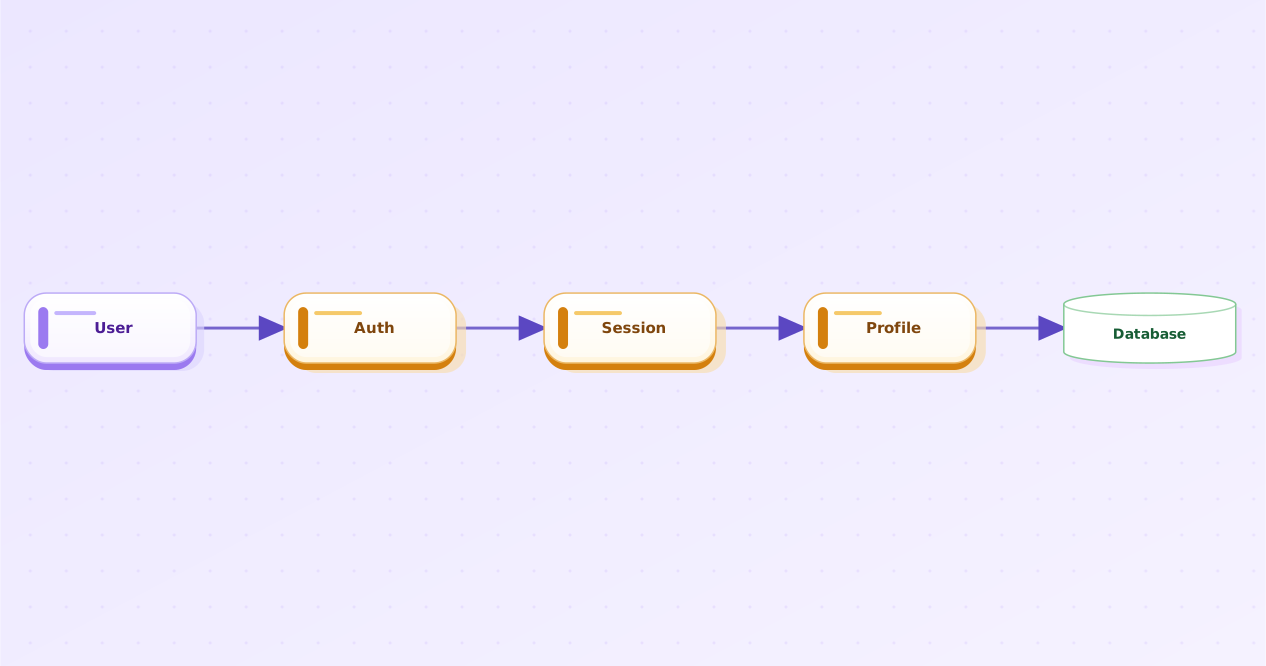
The "looks like every other README" baseline. Functional, but doesn't carry weight.
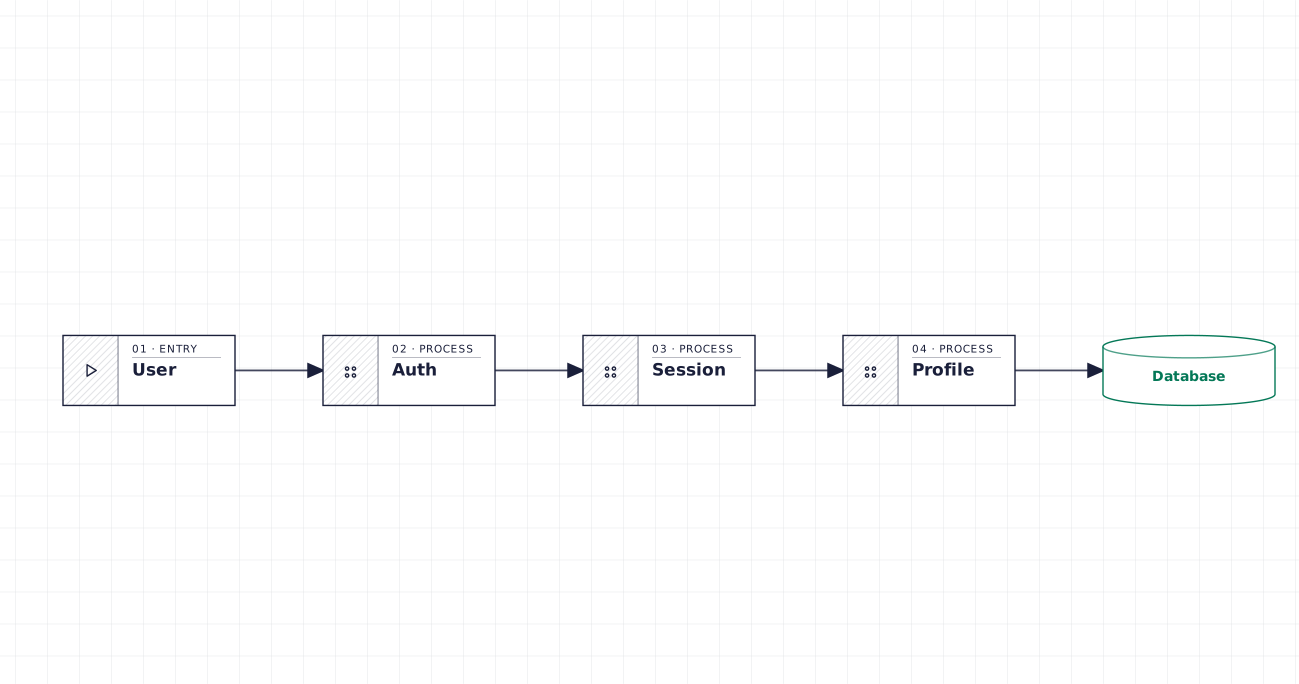
Blueprint — for engineering notes where you want the diagram to read as a schematic, not a sketch.
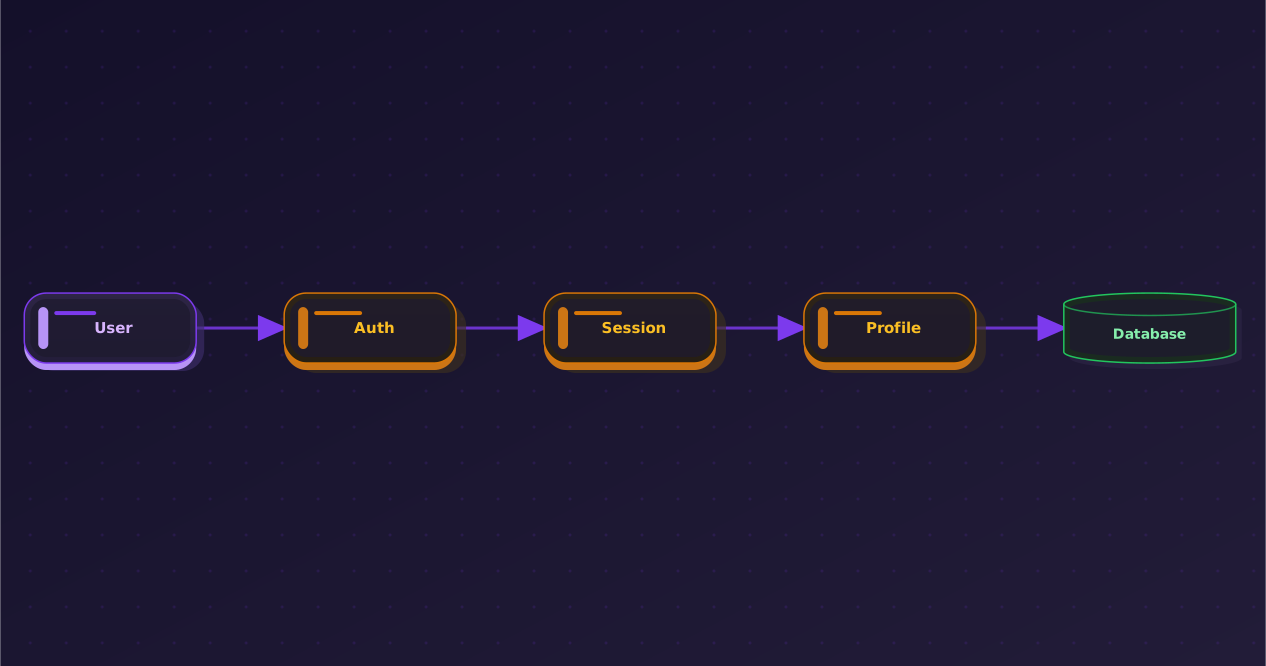
Obsidian — drops cleanly into a dark vault without re-tinting half the note around it.
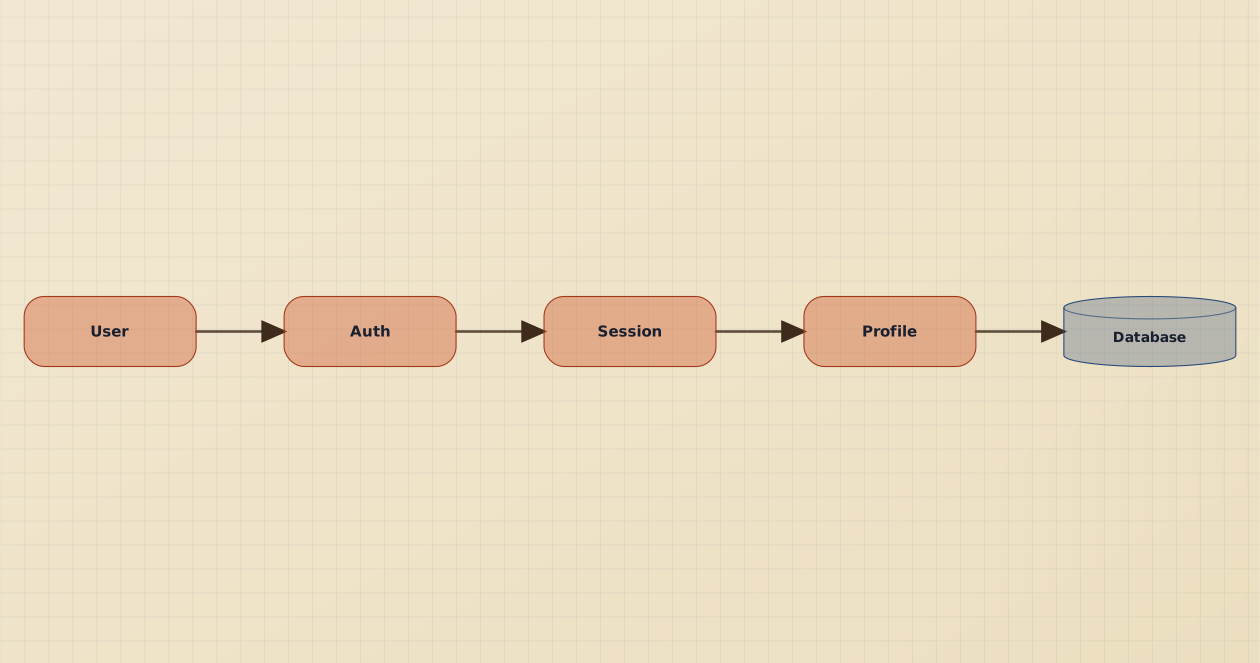
Atelier — when the note is closer to writing than to engineering documentation, and you want the diagram to match that voice.
Same source. The plugin's job is to make picking between these a one-click choice inside the editor you're already in.
Path 1 — Obsidian: install from Community Plugins
Obsidian's plugin model is the cleaner of the two. Install once, the renderer takes over every fenced mermaid block in every note in every vault that has it enabled.
The flow:
- Obsidian → Settings → Community plugins → Browse.
- Search for "Beauty Diagram".
- Click Install, then Enable.
The plugin registers itself as a markdown post-processor for mermaid code blocks. On any note with reading view (or live preview) open, fenced Mermaid blocks now render through the themed pipeline instead of Obsidian's bundled mermaid.js.
📸 Screenshot needed for beautify-mermaid-in-obsidian-and-vscode — see end of post for the list.
Picking a theme inside the vault
Open the plugin's settings tab (Settings → Community plugins → Beauty Diagram → ⚙️). The theme picker shows the full set of production themes: classic, modern, atlas, blueprint, memphis, obsidian, slate, brutalist, atelier. Pick one; every open Mermaid preview re-renders within a second.
The choice is per-vault, not per-note. Your "engineering work" vault can pin Blueprint; your "personal writing" vault can pin Atelier; both behave independently.
Per-note overrides via front-matter
When one note in a vault needs a different treatment — say, you're drafting a doc for an external repo whose docs site uses a different theme — you can override at the file level via YAML front-matter:
---
title: Auth handoff flow
bd-theme: blueprint
bd-share: true
bd-width: 720
---Three knobs to know:
bd-themepicks one of the production themes for this single note. Wins over the vault default.bd-share: true(Obsidian plugin 0.1.4+) generates a hosted share URL alongside the in-vault preview, so you can drop the same diagram into a Slack thread or a GitHub comment without re-exporting. The URL appears in the preview footer; click to copy.bd-width: 720clamps the rendered diagram's max width. Useful in vaults with narrow note widths (or for diagrams you intend to paste into a fixed-width target). Defaults to the source's natural width.
The keys live in the note's front-matter so contributors editing the note in any markdown tool see them; they're inert outside the plugin.
Path 2 — VS Code (and Cursor / Windsurf / VSCodium): install from Marketplace
The VS Code extension covers more editors than the name suggests. The same VSIX runs in:
- VS Code — official Marketplace install.
- Cursor — same Marketplace; Cursor's extension panel reads from VS Code's registry.
- Windsurf — same Marketplace via Open VSX.
- VSCodium — install the VSIX directly (Open VSX or download from the Marketplace listing).
The install:
- View → Extensions (or
Cmd-Shift-X/Ctrl-Shift-X). - Search "Beauty Diagram".
- Install.
The extension hooks the built-in markdown preview. Open any .md file, hit Preview to the Side (Cmd-K V), and Mermaid blocks in that file render through the themed pipeline. No restart, no settings.json edit.
📸 Screenshot needed — see list at the end.
Picking a theme without leaving the file
The extension contributes a status bar item — Beauty Diagram: <current theme> — at the bottom-right of the editor when a markdown file with Mermaid blocks is active. Click it, the command palette opens with all 9 themes listed, pick one, the preview re-renders.
The choice persists per workspace (in .vscode/settings.json under beautyDiagram.theme), so your team can commit a workspace theme alongside the docs and everyone's previews match.
Per-file front-matter overrides
Same shape as Obsidian, same keys:
---
bd-theme: modern
bd-share: true
bd-width: 960
---The Mermaid block below the front-matter is unchanged — any fenced mermaid block in the same file picks up these settings.
bd-themeoverrides the workspace setting for this single file.bd-share: true(VS Code extension 0.1.19+) renders the same hosted share link the Obsidian plugin does. Status bar shows a copyable URL once the preview renders.bd-width: 960clamps the rendered width — handy when the doc will be embedded in a site with a known content column.
bd-width landed in the same release (0.1.19) on the VS Code side and 0.1.4 on the Obsidian side. If you're on an older build, the front-matter key is ignored — upgrade via the extension panel / community plugins screen.
The "no round-trip" loop, end to end
The reason both plugins matter together is that the writing loop collapses to:
- Type Mermaid in your editor.
- Toggle preview.
- Cycle themes via the command palette / settings tab until the diagram fits the note.
- Save / commit.
No browser tab. No "paste source into a web renderer, screenshot, drag image back, delete source, repeat on next edit." The source stays canonical; the preview is the design surface.
For diagrams that DO need to live outside the vault — a doc embed, a Slack post, a comment on a PR — bd-share: true produces a hot-linkable URL that updates when you edit the source. Same loop, one extra opt-in field per file.
Beauty Diagram ships an Obsidian community plugin and a VS Code Marketplace extension (also works in Cursor, Windsurf, and VSCodium). Pick a theme inside the editor, render every fenced Mermaid block through it, and use the front-matter knobs when one note needs to break ranks. (Disclosure: I work on it.)
See the Obsidian plugin →If your daily writing surface is VS Code rather than Obsidian, the VS Code Mermaid preview extension page has the same install walkthrough and a feature matrix specific to that ecosystem (workspace settings, status-bar control, multi-root behaviour). For the vault side, see the Obsidian Mermaid plugin page.
When the in-editor path isn't the right path
A few cases where you'll want to skip the plugins and stay with the open-source baseline:
- Your team requires a sandboxed plugin policy. Some orgs lock down Obsidian community plugins entirely (or whitelist a small set). Submit a security review or stay with the bundled mermaid.js + an
initdirective for a hand-tuned theme. - You're rendering Mermaid in a context the editor can't reach. A CI step, a hosted preview environment, a server-side render of a markdown blob — none of those run inside Obsidian or VS Code. The in-editor plugins are for the author's loop, not the build pipeline.
- The diagram is the doc. A tutorial about Mermaid itself benefits from the reader seeing the same default render they'd get on their own setup. Theming it would obscure the lesson.
- You're targeting a surface that ships its own Mermaid renderer. GitHub READMEs, Notion, GitLab, some Docusaurus configurations — the surface's renderer wins regardless of what your editor previewed. The editor plugin makes drafting easier; the published output needs a different conversation (see the previous post in this series on the docs-repo workflow).
The rule of thumb: editor plugins are for the writing loop. Hosted shares and pre-rendered SVGs are for the publishing loop.
Wrap-up
Three takeaways:
- The "ugly Mermaid preview" problem is solved at the editor, not at the source. Don't sprinkle
initdirectives across every block; install one plugin that handles every block in the vault or workspace. - One install covers more editors than you'd think. Obsidian on the writing side; VS Code, Cursor, Windsurf, and VSCodium on the code-adjacent side. The renderer is the same; the install shell differs.
- Per-file front-matter is the escape hatch.
bd-theme,bd-share,bd-widthcover the three things you actually want to override per note: visual treatment, shareability, and embedded width.
If this was useful, drop a ❤️ and follow — I'm posting weekly on diagrams, docs, and developer ergonomics. Next week: 10 Mermaid Tricks I Wish I'd Known Before Drawing 200 Diagrams.
Which editor is your default writing surface for Mermaid — Obsidian, VS Code, or something I haven't named? I'm trying to figure out whether the next plugin should be JetBrains or Zed first.
Continue reading
Convert draw.io Files to Production-Ready SVG (Without the Default Look)
draw.io's Export → SVG dialog ships a 400 KB blob of embedded fonts and foreign-object text. The path from cleaner native exports to treating the .drawio XML as source and re-rendering it.
Adding Beautiful Diagrams to Your Docusaurus / VitePress Site
Enabling Mermaid in Docusaurus or VitePress takes ten minutes. Making the diagrams stop looking generic takes another thirty. The whole path — plugin config, theming, and when to swap the renderer.