
Convert draw.io Files to Production-Ready SVG (Without the Default Look)
draw.io's Export → SVG dialog ships a 400 KB blob of embedded fonts and foreign-object text. The path from cleaner native exports to treating the .drawio XML as source and re-rendering it.
TL;DR The SVG that draw.io hands you is usually a 400 KB blob with embedded fonts, foreign-object text nodes, and the same off-white palette every draw.io export has shipped since 2016. The 10-minute fix is unchecking the right boxes in the export dialog and running SVGO. The 30-minute fix is stopping treating the exported SVG as an artifact — your
.drawioXML file is source, and a different renderer can turn it into a production-ready diagram that matches your docs' design language.
The draw.io export tax
You inherited a repo where the architecture doc has six .drawio files. Every time someone touches the architecture, they open diagrams.net, rearrange boxes, File → Export as → SVG, click "Save", and commit both the .drawio source and the exported .svg next to it. The docs page embeds the SVG. Ship it, move on.
A quarter later you look at the docs site on a laptop screen and notice three things:
- Every architecture diagram is 300–500 KB. The rest of the page is 40 KB.
- The typography inside the diagrams is a font that isn't loaded anywhere else on the site. It renders slightly differently in Safari than in Chrome. Nobody knows why.
- The diagrams look like every other draw.io diagram on the internet. Pale fills, thin edges, the same default palette that was fine in 2016 and is now the visual equivalent of a Bootstrap 3 landing page.
That's the draw.io export tax. The tool is genuinely excellent at letting people who don't want to write text-based diagram source drag boxes around a canvas — but the SVG that comes out of the Export dialog is optimised for "print-fidelity round-trip", not for "goes on a web page next to your product copy". This post is the path from that default SVG to a diagram you're actually proud to ship.
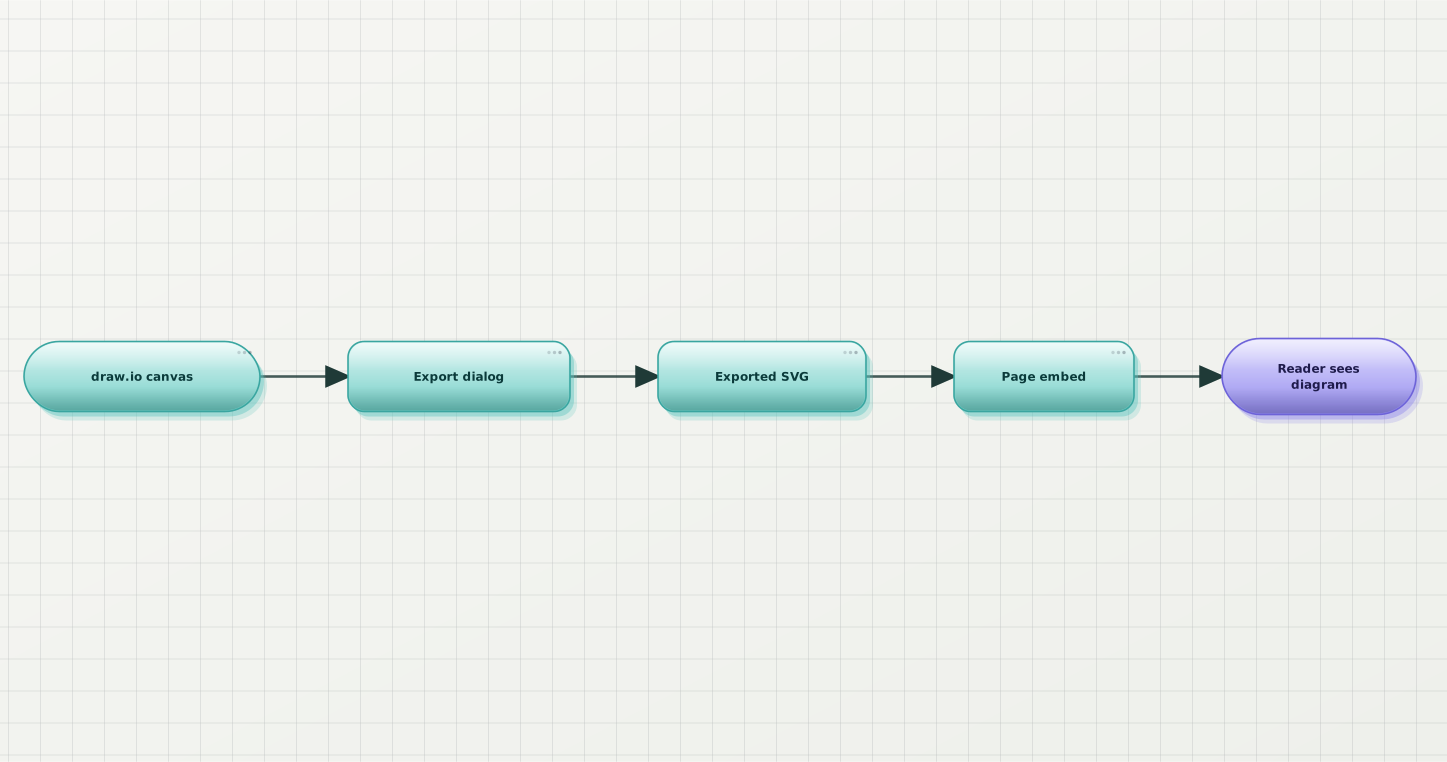
The default draw.io lifecycle. Every stage after "Export dialog" is downstream of a snapshot; the source and the artifact drift apart the moment you save.
Why the exported SVG is bloated
Before you can strip weight from it, you have to know what's in it. Open one of your exported .drawio SVGs in a text editor and search for these four things:
-
Embedded font subsets. By default, draw.io inlines the fonts it used (usually Helvetica or Arial equivalents) as base64 blobs inside a
<style>tag, so the diagram renders identically on machines that don't have those fonts installed. On a modern web page where you're already loading a webfont, this is 60–200 KB of pure duplication. -
<foreignObject>text nodes. draw.io renders text by embedding an HTML<div>inside a<foreignObject>element. That gives it real HTML text layout (multi-line wrapping, mixed styles), but the trade-off is that each label is 5–10 lines of XML —xhtml-namespaced spans, inlinestyle="…"attributes, sometimes duplicated for high-DPI rendering. Six labels in a diagram can easily be 15 KB of markup. -
<mxfile>source embedded in the SVG. The default "Include a copy of my diagram" checkbox embeds the entire XML source of the diagram back inside the SVG file, base64-encoded, in acontentattribute on the root<svg>element. This is what makes draw.io able to re-open an exported SVG as if it were a.drawiofile — but if you don't use that round-trip, it's dead weight. Anywhere from 5–30 KB. -
Inline
style="…"on every shape. No CSS classes. Every rectangle carries its full stroke width, fill colour, stroke colour, and marker properties as an attribute. This is fine performance-wise but means SVGO can't dedupe them without breaking the render — the styles look repetitive but each one is on a semantically different element.
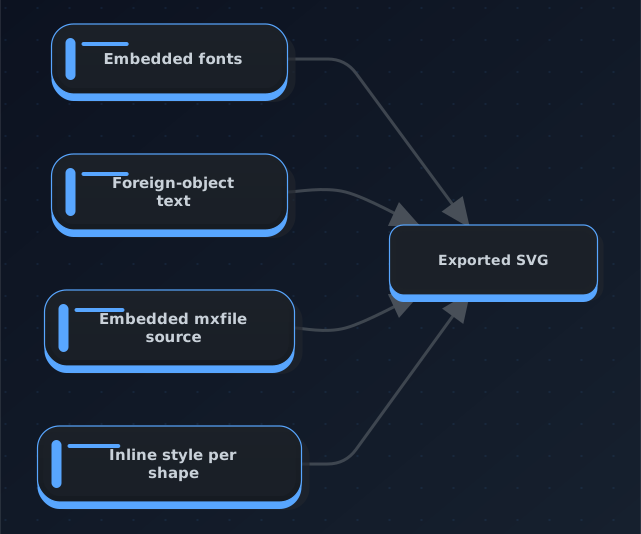
The four things filling up the default draw.io SVG. Two of them (fonts + embedded source) you can turn off. Two of them (foreign-object text + inline styles) are baked into how the exporter renders — you can't strip them without breaking the file.
Path 1: work with what draw.io ships
You can trim the default export down significantly by unchecking two boxes and running one CLI tool. This is the ten-minute baseline before you consider anything bigger.
The Export dialog knobs that matter
Open your .drawio file, then File → Export as → SVG…. The dialog has more toggles than it looks like it should. The ones that move the file size needle:
-
"Embed Fonts" — turn OFF. This is the single biggest lever. Turn it off and the SVG references font-family names generically (
Helvetica, Arial, sans-serif) instead of shipping a base64 font blob. As long as your page already has a webfont loaded, the diagram renders in that font. Downside: on a page with no webfont, the browser falls back to whatever system font matches — usually fine, occasionally ugly. -
"Include a copy of my diagram" — turn OFF unless you use it. If you don't rely on draw.io re-opening the exported SVG as an editable source (i.e. you keep the
.drawiofile next to it), this box only adds weight. Turn it off and the SVG loses its round-trip capability but shrinks by the size of your compressed source. -
"Text Settings: SVG" (radio) — leave as SVG, not "Rendered HTML". "Rendered HTML" is even heavier — it uses the
<foreignObject>path exclusively; SVG mode uses<text>elements where it can and only falls back to<foreignObject>for multi-line / rich text. Fewer bytes per label. -
"Transparent Background" — turn ON. Save yourself the extra
<rect>filling the whole viewbox.
That combination — Embed Fonts off, Include-copy off, Text: SVG, Transparent — usually gets you from a 400 KB default export to a 100–150 KB file. Not amazing, but not embarrassing either.
SVGO with a drawio-safe config
The other half of the ten-minute path: pipe the export through SVGO, the standard SVG minifier. The catch is that SVGO's default preset is tuned for icon SVGs and will happily strip attributes that draw.io actually needs — namespace declarations for xhtml, xlink:href on markers, the viewBox attribute (yes really, on aggressive settings).
A safe starting config:
// svgo.config.js
export default {
  multipass: true,
  plugins: [
    {
      name: 'preset-default',
      params: {
        overrides: {
          removeViewBox: false,
          removeUnknownsAndDefaults: {
            keepDataAttrs: true,
            keepAriaAttrs: true,
          },
          convertPathData: {
            floatPrecision: 2,
          },
        },
      },
    },
    'removeDimensions',
    'sortAttrs',
  ],
};Then:
npx svgo --config svgo.config.js -f ./docs/diagrams -o ./docs/diagramsThis shaves another 20–40% off, mostly from decimal precision reduction on path data and attribute sorting for better gzip. Total path 1 outcome: your original 400 KB export lands around 60–100 KB. Ship it.
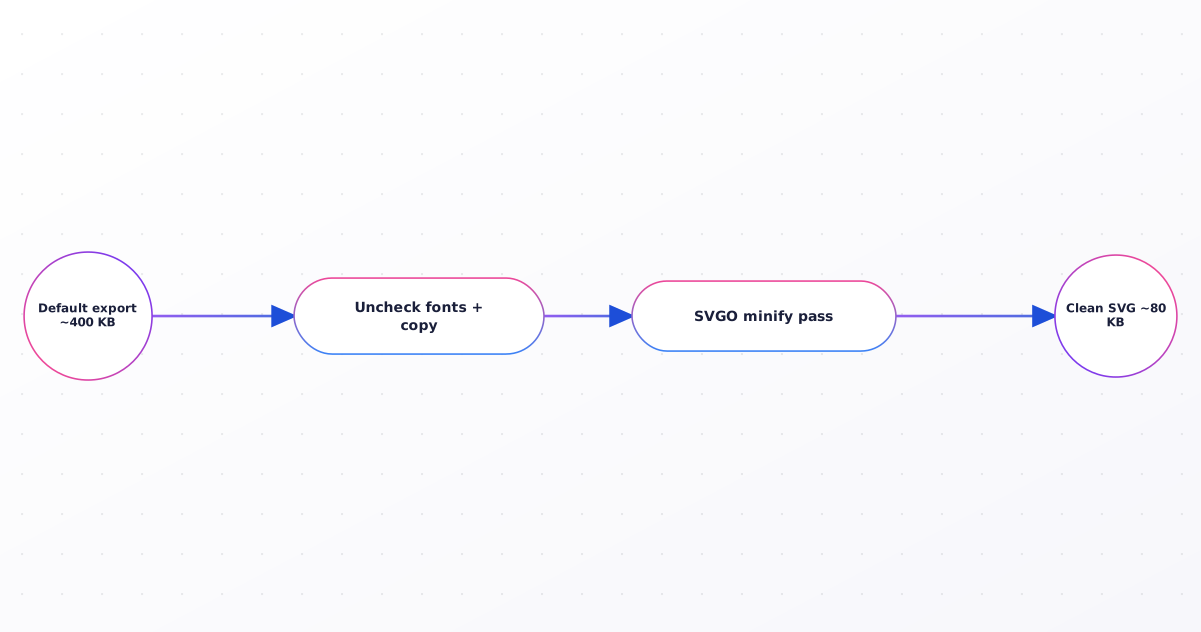
Path 1 lifecycle. You're not changing what the diagram looks like — you're just stripping weight from the same export.
When path 1 stops being enough
Path 1 is the sensible default. For a lot of teams — internal wikis, engineering runbooks where the diagram just has to be legible — it's the whole answer. Three signals it isn't:
-
You want the diagrams to match the design language of the rest of your site. SVGO doesn't do this. Neither does the Export dialog. The palette, the stroke weights, the corner radii, the font stack — all of that is baked into the draw.io shape library and there's no knob for "render this as if the doc site's brand designed it".
-
You have dozens of
.drawiofiles and you want a single decision that applies to all of them. Path 1 is per-file — every time someone edits a diagram, they have to remember the export toggle checklist. Six months in, half your diagrams have "Embed Fonts" on and half don't. -
The diagram source and the artifact keep drifting. Someone edits the
.drawiofile, forgets to re-export, and the SVG on the docs page is now stale. Or someone touches the SVG directly (because it's the file the docs build imports) and now the.drawiosource doesn't match what's shipped.
Any one of those, and it's worth twenty minutes to look at path 2.
Path 2: treat the .drawio file as source, re-render it
The idea is a shift in what "source of truth" means. Right now you probably think of the .drawio file as the editable master and the .svg as the built artifact. Path 2 keeps the .drawio as source but stops treating draw.io's own Export dialog as the renderer. Instead you feed the same XML into a different renderer that lays the diagram out in a theme you actually picked.
The .drawio file format is just XML — an <mxfile> wrapper around one or more <diagram> elements, each containing an <mxGraphModel> of nodes and edges. Nothing about it is proprietary or magical. Any tool that speaks mxGraph can re-render it.
Prerequisite: get an uncompressed, single-page .drawio
The one gotcha before path 2 works: by default, the desktop app and diagrams.net web app save .drawio files as compressed XML — the outer <mxfile> wrapper is XML but the inner <diagram> payload is deflate-compressed and base64-encoded. Any renderer that isn't draw.io itself has to decompress it first, and some don't bother, so it's cleanest to save uncompressed to begin with.
Turn compression off:
- draw.io desktop / web:
File → Preferences → Save Diagrams Compressed— uncheck it. ThenFile → Save Asand pick.drawioagain. The saved file now has readable XML end-to-end.
You can verify by opening the file in a text editor. Uncompressed looks like:
<mxfile host="app.diagrams.net" version="24.7.17">
  <diagram name="Architecture" id="abc123">
    <mxGraphModel dx="1600" dy="900" grid="1" ...>
      <root>
        <mxCell id="0" />
        <mxCell id="1" parent="0" />
        <mxCell id="2" value="Auth Service" style="rounded=1;..." vertex="1" parent="1">
          <mxGeometry x="120" y="80" width="140" height="60" as="geometry" />
        </mxCell>
        <!-- more cells -->
      </root>
    </mxGraphModel>
  </diagram>
</mxfile>Compressed looks like an unreadable base64 blob inside the <diagram> tag. If yours looks like that, flip the setting and re-save.
Second thing to check: one page per file. draw.io lets you keep multiple tabs (pages) inside a single .drawio file — each becomes a <diagram> element under the <mxfile> root. Renderers vary in whether they handle multi-page; the safest guarantee is one page per .drawio file. If yours has tabs, right-click a tab and "Move to Another File" or delete the ones you don't need.
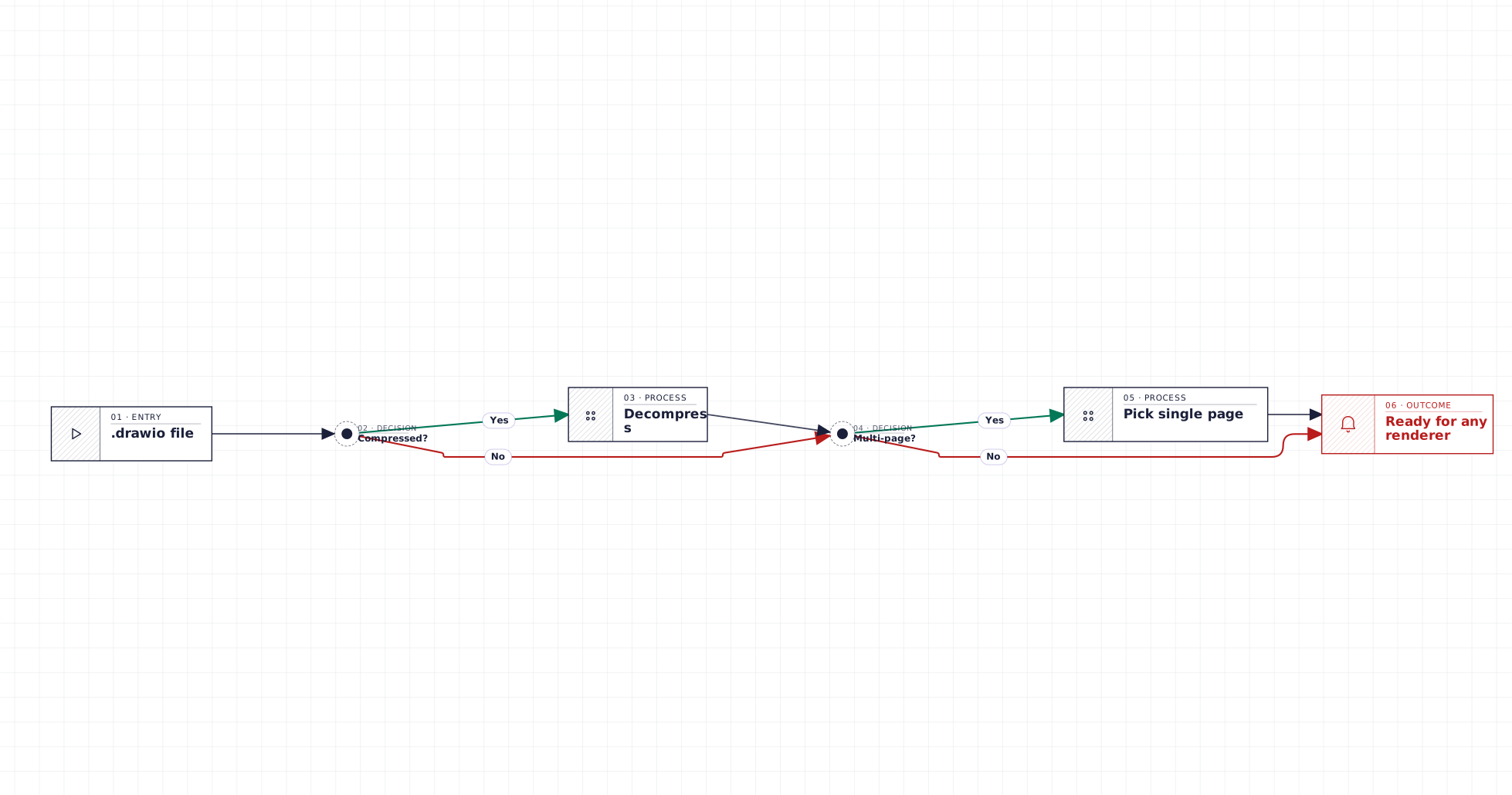
What the .drawio file needs to look like for any non-draw.io renderer to accept it. Uncompressed and single-page.
Re-render it, pick a theme
Once the .drawio file is in the right shape, you have a source file that any mxGraph-aware renderer can consume. The Web UI is where I'd start.
Open the Beauty Diagram editor, paste the .drawio XML into the source pane, and cycle through the nine production themes — classic, modern, atlas, blueprint, memphis, obsidian, slate, brutalist, atelier. Each rebuilds the diagram from the mxGraph nodes and edges rather than skinning draw.io's own render, so what you see is a clean SVG with the theme's own typography, node treatment, and edge style — not draw.io's defaults with a colour tweak. Pick the theme that fits the surrounding doc, hit Export SVG, and the file goes into your docs assets directory the same way the draw.io export did. (Disclosure: I work on Beauty Diagram.)
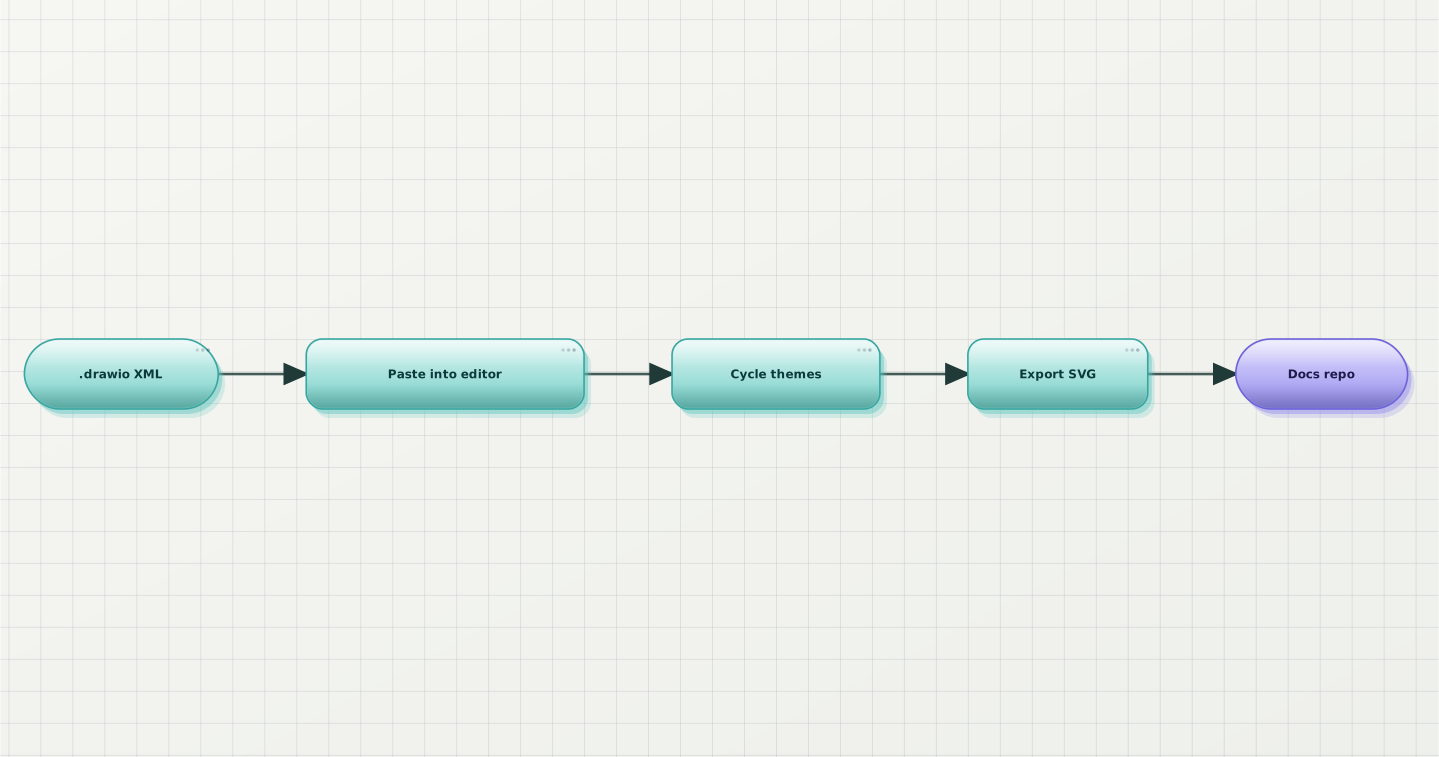
Web UI flow. The .drawio XML is the source; the SVG is generated on demand in the theme you picked, not carried around as a stale artifact.
For CI and power users, the CLI does the same thing without opening a browser:
npx @beauty-diagram/cli beautify architecture.drawio --theme atlas --out architecture.svgThat reads the uncompressed .drawio, parses the mxGraph nodes and edges, re-lays out the diagram with the atlas theme, and writes the resulting SVG to architecture.svg. If your docs live in a git repo, drop this into a Makefile target and every diagram in docs/diagrams/*.drawio re-renders in a single command:
for f in docs/diagrams/*.drawio; do
  npx @beauty-diagram/cli beautify "$f" \
    --theme atlas \
    --out "docs/diagrams/$(basename "$f" .drawio).svg"
doneBeauty Diagram parses .drawio XML directly, lays it out fresh, and hands you the SVG in whichever of nine production themes matches your docs' design language — no per-file export checklist, no drift between source and artifact. (Disclosure: I work on it.)
Try the editor →Two examples of what the same architecture flow looks like across themes:
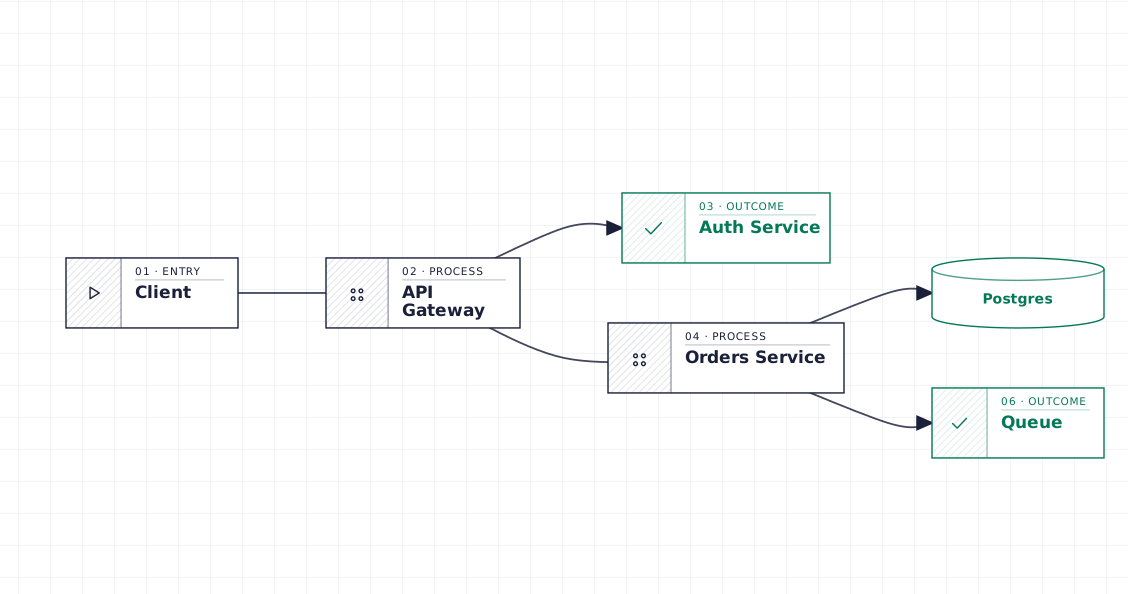
Blueprint. When the diagram sits inside an engineering deep-dive and should read as a schematic.
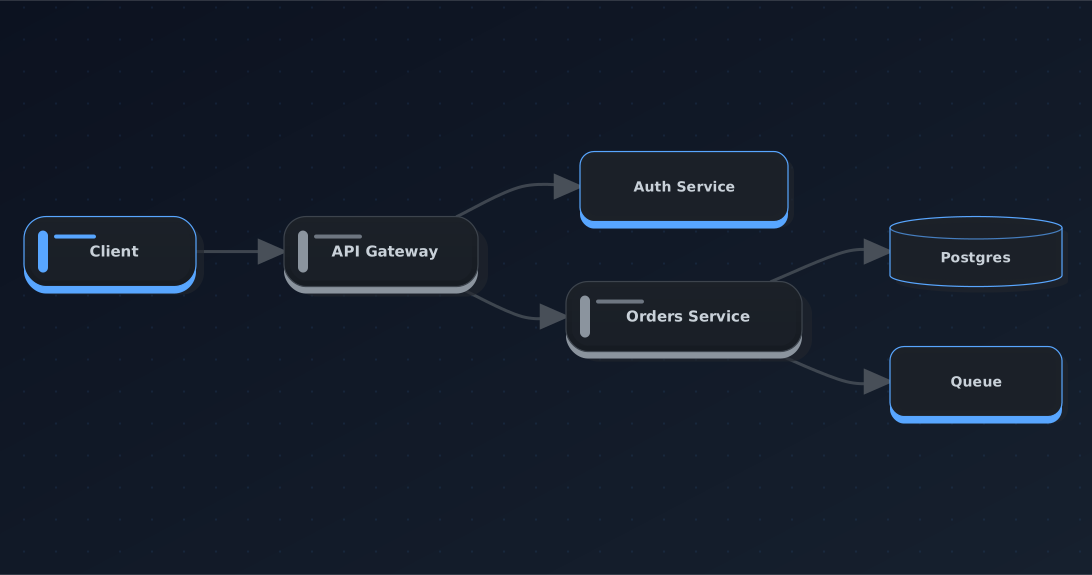
Slate. When the diagram sits inside a product overview and needs to fit next to prose without shouting.
Same .drawio source, different theme, no export-dialog checklist. The renderer is the choice; the source stays canonical.
When each path is right
| Signal | Path 1 (clean the export) | Path 2 (re-render the source) |
|---|---|---|
| One-off diagram in an internal wiki | ✅ | |
| Team with a design language across the docs | ✅ | |
Dozens of .drawio files that should look coherent | ✅ | |
| CI regenerates artifacts on every PR | ✅ | |
| No control over how the source is saved | ✅ | |
Multi-page .drawio files you can't split | ✅ |
The paths aren't exclusive. In practice I use path 2 for repos where the docs are shipped and looked at often — SaaS product docs, public architecture overviews, launch posts. Path 1 is fine for the internal engineering wiki nobody reads twice, where "legible SVG under 100 KB" is the whole spec.
The way to know you've picked path 1 well: nobody has looked twice at the diagrams since you last touched them. The way to know it's time to move to path 2: someone on your team is asking whether the diagram tooling should get a redesign pass, and you don't want to open one Export dialog per file to answer.
Wrap-up
Three takeaways:
- The draw.io Export dialog is not the renderer; it's a snapshotting tool. The defaults are tuned for round-trip fidelity, not for shipping SVG on a web page. Unchecking "Embed Fonts" and "Include a copy of my diagram" cuts most of the weight before you touch anything else.
- SVGO is the last-mile compression, not the answer. It shaves 20–40% off any SVG including draw.io's, but it can't change how the diagram looks or fix the drift between source and artifact.
- The
.drawioXML is source of truth; the SVG is derived. Save uncompressed and single-page, then feed the XML through a renderer you control. One theme decision, applied to every.drawioin the repo, no per-file export checklist.
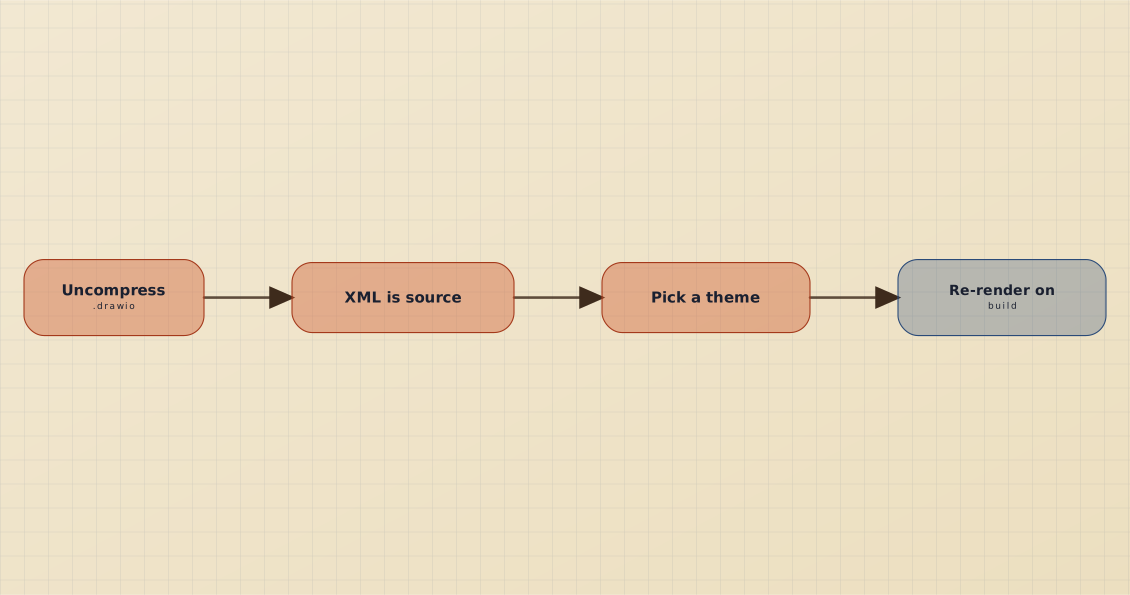
The shortest path through this post: keep the .drawio XML as source, stop treating draw.io's Export dialog as the renderer, pick a theme once, and let CI re-derive the SVG.
If this was useful, drop a ❤️ and follow — I'm posting weekly on diagrams, docs, and developer ergonomics. Next week: Diagrams as Code in 2026: Mermaid, PlantUML, D2, Excalidraw — When to Use What.
What's the largest exported draw.io SVG currently living in a repo you maintain? I'm curious whether the "400 KB for a six-box flow" pattern is universal or whether some teams have already gone somewhere cleaner.
Continue reading
Adding Beautiful Diagrams to Your Docusaurus / VitePress Site
Enabling Mermaid in Docusaurus or VitePress takes ten minutes. Making the diagrams stop looking generic takes another thirty. The whole path — plugin config, theming, and when to swap the renderer.
How to Beautify and Theme Mermaid Diagrams in Obsidian & VS Code
The default pastel preview undermines the note you're polishing. Two plugins put a themed Mermaid renderer in the same pane — no round-trip to a web tool. Setup for both, plus the per-file options.