
10 Mermaid Tricks I Wish I'd Known Before Drawing 200 Diagrams
Most Mermaid users plateau after the basics. These 10 tricks — subgraph zones, classDef inheritance, edge label styling, init blocks — pay back every time you open a fenced mermaid block.
TL;DR Most people learn Mermaid by copy-pasting a flowchart from a tutorial, tweaking it once, and then never going further. The next ten tricks — subgraph zones, classDef inheritance, edge label markdown, init theme variables, click handlers — are the ones that took me from "Mermaid works" to "Mermaid actually communicates something". Every one of them is a vanilla Mermaid feature; no plugins, no forks.
How I got here
I've shipped somewhere north of 200 Mermaid diagrams into READMEs, design docs, runbooks, and onboarding decks over the last two years. The first 50 were flowchart LR and four nodes. The next 100 were the same thing in slightly different colours.
The last 50 were different — same syntax, but the diagrams stopped being placeholder visuals and started being something a reader could navigate without three paragraphs of caption underneath. The difference wasn't a new tool. It was a handful of Mermaid features I'd seen in the docs, skipped past, and only came back to when I got tired of the same flowchart LR look.
This post is those features. Each one ends with the code I actually paste into doc PRs.
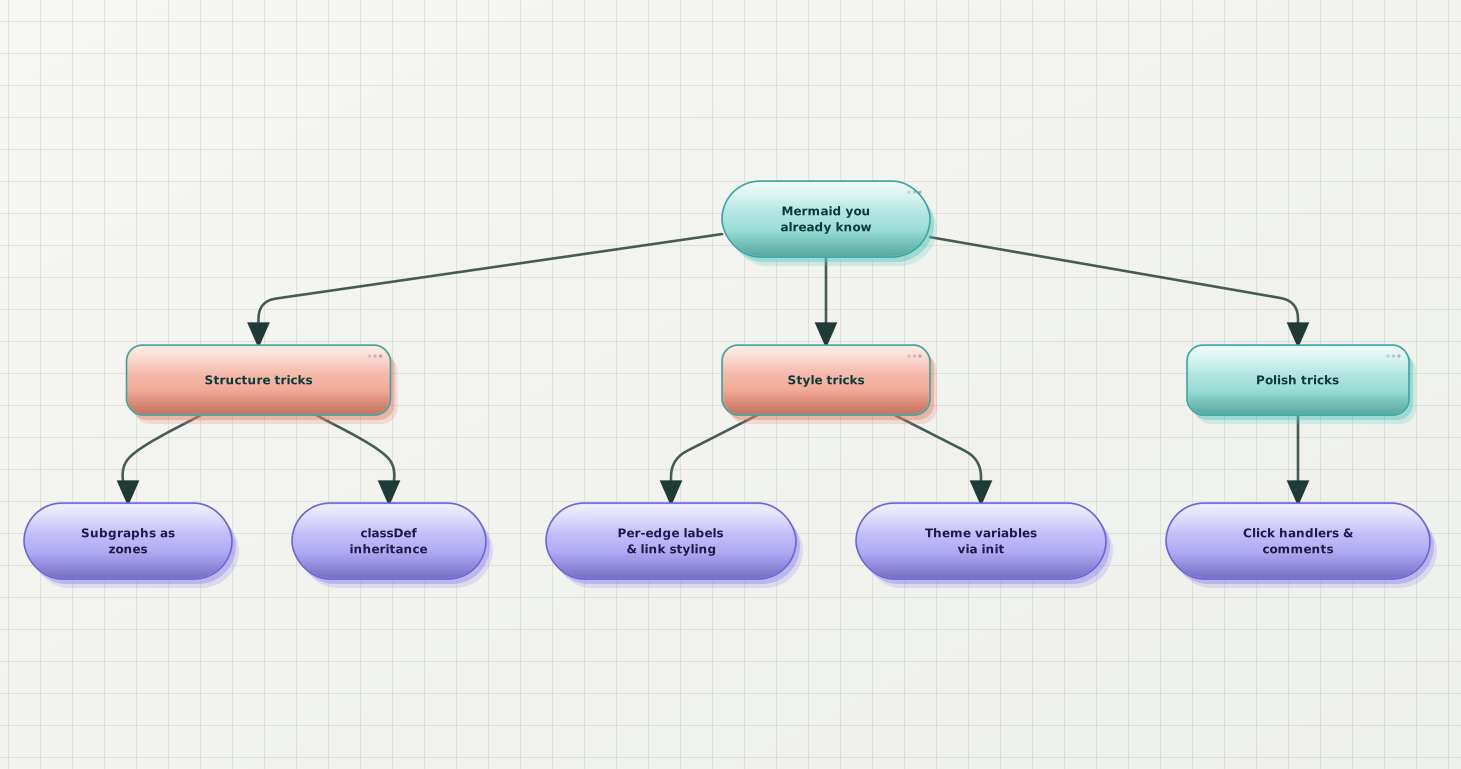
The shape of the rest of this post. Three groups; ten tricks; pick the three that apply to whatever fenced block is in front of you today.
1. Comments with %% (yes, inside the diagram)
The first time I saw a colleague's flowchart with leading lines like %% retry path lives in worker.ts, I thought they'd broken the syntax. They hadn't — Mermaid treats %% as a single-line comment anywhere in the source.
flowchart LR
  %% Source: docs/architecture/auth.md §3
  U[User] --> A[Auth]
  A --> S[Session]
  %% Session expiry policy: 30d sliding window
S --> P[Profile]It's invisible in the rendered output, but if you're using Mermaid as documentation in a long-lived repo, comments are the difference between a diagram a future maintainer can update and a diagram they rewrite from scratch.
2. Edge labels carry weight — use them
The default way to label an edge is A -- text --> B. You'll see this in every tutorial. What the tutorials skip: edge labels accept Mermaid's full text styling, including <br/> for line breaks and inline backticks for code voice.
flowchart LR
  R[Request] -- "validate<br/>(zod)" --> H[Handler]
  H -- "200 OK<br/>+ session" --> C[Client]
H -- "4xx<br/>+ error code" --> CThe trick: when a flow has two edges between the same pair of nodes (happy path + error path), labels with the response shape make the diagram readable without a separate legend.
3. linkStyle for per-edge visual hierarchy
Every edge in a default flowchart looks the same. That works for three nodes. It stops working at six, where the reader can't tell which path is the main one.
linkStyle indexes into the edges in declaration order (0-based) and lets you re-style any of them:
flowchart LR
  R[Request] --> V{Valid?}
  V -- yes --> H[Handler]
  V -- no --> E[Reject 400]
  H --> S[(Storage)]
  S --> O[Response]
  linkStyle 0,2,4,5 stroke:#2563eb,stroke-width:2.5px
linkStyle 3 stroke:#ef4444,stroke-width:1.5px,stroke-dasharray:4The happy path now reads as one continuous thread; the error path falls back as a dashed crimson aside. The reader's eye routes itself.
4. Per-node style for the one node that matters
style <id> <css> styles one node directly. Most useful for the node a diagram is really about:
flowchart LR
  A[Plan] --> B[Build] --> C[Test] --> D[Ship]
style D fill:#16a34a,stroke:#14532d,color:#fff,stroke-width:2pxDon't style every node. The whole point of a per-node style is that it's an exception — the reader's eye lands on it because it doesn't match the rest.
5. classDef + class — styling that scales
Once you have three nodes that should share a style, style per node gets repetitive. classDef is the Mermaid way to define a reusable style and apply it by class:
flowchart LR
  R[Request] --> A[Auth]
  A --> S[Session]
  S --> H[Handler]
  H --> D[(Database)]

  classDef external fill:#e0f2fe,stroke:#0369a1,color:#0c4a6e;
  classDef storage  fill:#fef3c7,stroke:#a16207,color:#78350f;

  class R external
class D storageTwo lines of classDef, two class assignments, and the diagram now teaches the reader where each component lives (external surface vs persistent storage) without a single label change.
6. classDef inheritance: stack multiple classes on one node
This one took me a year to find in the docs. class accepts multiple class names, comma-separated, and Mermaid merges them in declaration order — later classes win on conflicts. So you can layer role (external / internal / storage) onto state (healthy / degraded / down) without writing six combined classes:
flowchart LR
  A[Auth] --> S[Session]
  S --> D[(DB)]

  classDef storage fill:#fef3c7,stroke:#a16207;
  classDef degraded stroke:#dc2626,stroke-width:3px,stroke-dasharray:4;

class D storage,degradedThe DB node renders with the storage fill (from storage) and the degraded stroke (from degraded). Adding a "down" state is one more classDef plus a comma in the right class line — no exponential blowup.
7. Subgraphs as zones, not boxes
Most diagrams use subgraph as a way to draw a box around three nodes. It's worth more than that. Subgraphs accept their own direction, their own classDef, and their own internal layout — which means you can use them to split a diagram into zones the reader navigates one at a time:
flowchart LR
  subgraph Edge[Edge]
    R[Request] --> V[Validator]
  end
  subgraph Core[Core service]
    V --> H[Handler]
    H --> Q[Queue]
  end
  subgraph Async[Async workers]
    Q --> W[Worker]
    W --> S[(Storage)]
  end

  classDef zone fill:#f8fafc,stroke:#cbd5e1,stroke-dasharray:6,color:#475569;
class Edge,Core,Async zoneThe subgraph title becomes a section header. The dashed border tells the reader "this is a zone, not a node." And because Mermaid lays out edges across subgraph boundaries, you get a flow that reads top-to-bottom and side-by-side.
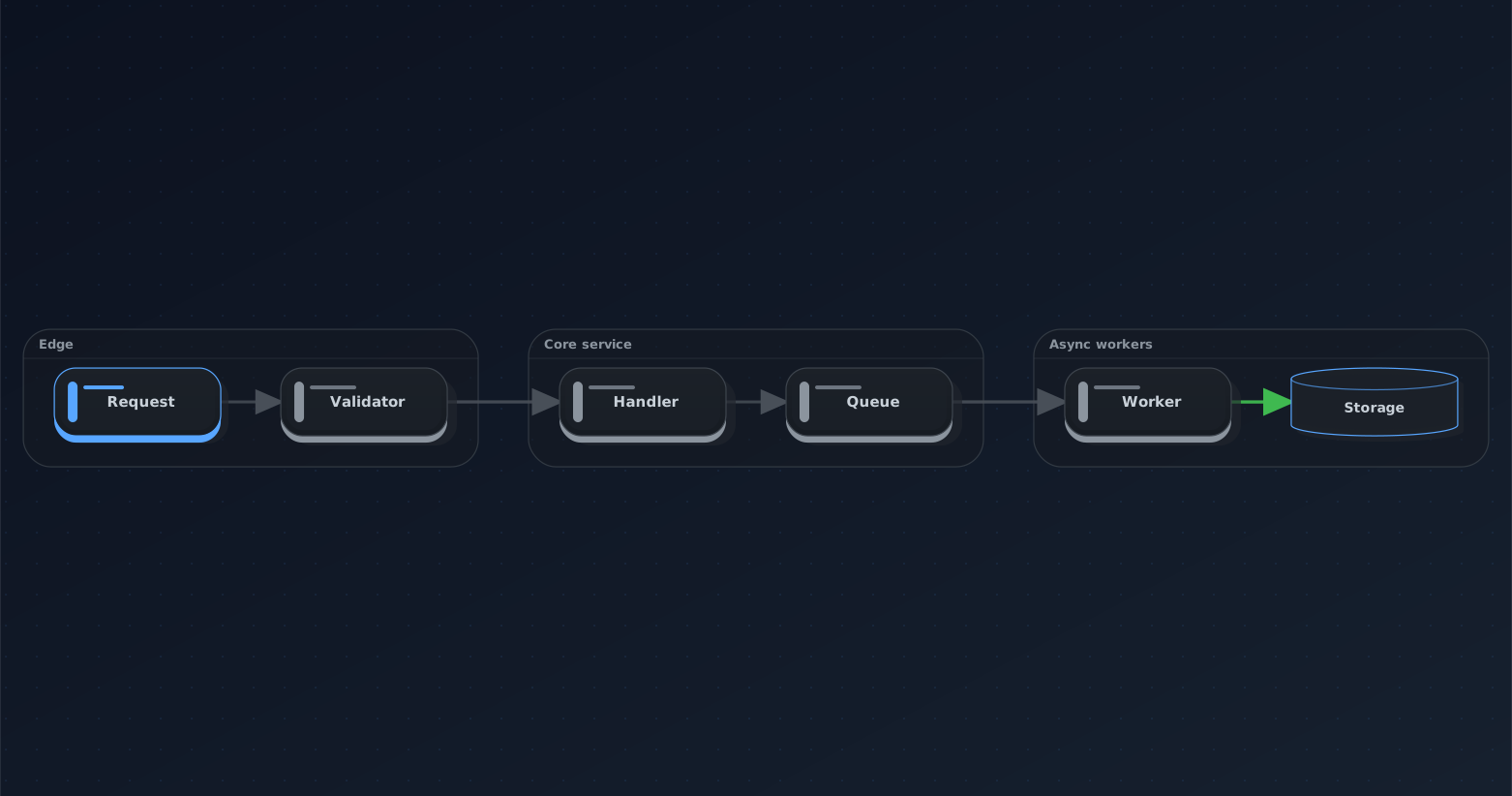
The same set of nodes you'd draw flat, but grouped into "where does this code live" zones. The reader can scan the boundaries before they read the edges.
8. Click handlers — Mermaid as navigation
This is the trick that turned my docs from static images into navigation surfaces. click <id> <url> "<tooltip>" makes a node clickable in any Mermaid renderer that supports it (GitHub does, Notion partially, doc sites like Docusaurus and VitePress all do):
flowchart LR
  R[Request] --> A[Auth] --> S[Session] --> H[Handler]

  click A "https://github.com/acme/api/blob/main/src/auth.ts" "src/auth.ts"
  click S "https://github.com/acme/api/blob/main/src/session.ts" "src/session.ts"
click H "https://github.com/acme/api/blob/main/src/handler.ts" "src/handler.ts"In a README rendered on GitHub, every node in that diagram is a link to the file it represents. The architecture diagram becomes the index for new contributors — they can scan the shape, then click straight into the code.
Tooltips alone (no URL) are also legal: click NodeId "Tooltip text".
9. Theme variables via %%{init}%% — when you don't want the defaults but don't want a tool
You can adjust Mermaid's theme inline at the top of any diagram block. The full set of variables is documented in the Mermaid theming reference, but for most flows you only need 4 or 5:
%%{init: {
  "theme": "base",
  "themeVariables": {
    "primaryColor": "#1e293b",
    "primaryTextColor": "#f1f5f9",
    "primaryBorderColor": "#334155",
    "lineColor": "#64748b",
    "fontFamily": "ui-sans-serif, system-ui, sans-serif"
  }
}}%%
flowchart LR
R[Request] --> H[Handler] --> D[(Database)]theme: base is the magic word — it disables Mermaid's bundled palettes so your variables actually take effect. Without it, Mermaid keeps applying its default theme on top of your overrides and most of them silently no-op.
The trade-off: every Mermaid block in the same doc needs its own init prelude (they don't inherit), and the prelude doesn't carry across rendering surfaces. Which is the cleanest segue I can give into trick 10.
10. Pick a theme once at the renderer, not per-block
Eight tricks in, you have a lot of options for in-block styling. The opposite move is to stop styling in the block at all, and pick one theme at the rendering layer — so every fenced mermaid block in your repo (or your vault, or your doc site) renders consistently without a per-block init prelude.
Three open-source ways to do this:
- GitHub READMEs: limited — GitHub forces its own Mermaid theme. The escape hatch is to ship rendered SVGs alongside the source (covered in the docs CLI post).
- Docusaurus / VitePress: their Mermaid integrations both accept a theme config; set it once in the site config and every block picks it up.
- Local preview (Obsidian, VS Code, Cursor): the editor's bundled Mermaid renderer ships one theme. Switching it is plugin territory (covered in the in-editor post).
What this trick really is: a reminder that the more you push into per-block init blocks, the harder your diagrams are to re-theme as a set. If you find yourself pasting the same %%{init}%% line into every block, the theme belongs at the renderer.
Beauty Diagram is what I use as the renderer layer when I want consistent Mermaid output across the canonical doc, the embed, and the editor preview — paste source into the web editor at /editor, cycle through nine production themes, then keep the same theme via the Obsidian plugin, the VS Code extension, or the CLI for doc repos. The themes are the only knob; you pick a different one rather than tuning the current one. (Disclosure: I work on it.)
Try the editor →The Web editor is the fastest way to feel the difference — paste a Mermaid block, click through classic, modern, atlas, blueprint, memphis, obsidian, slate, brutalist, atelier, save the one that fits the doc. For repo-wide consistency, the CLI is a one-liner:
npx @beauty-diagram/cli beautify diagram.mmd --theme blueprint --out diagram.svg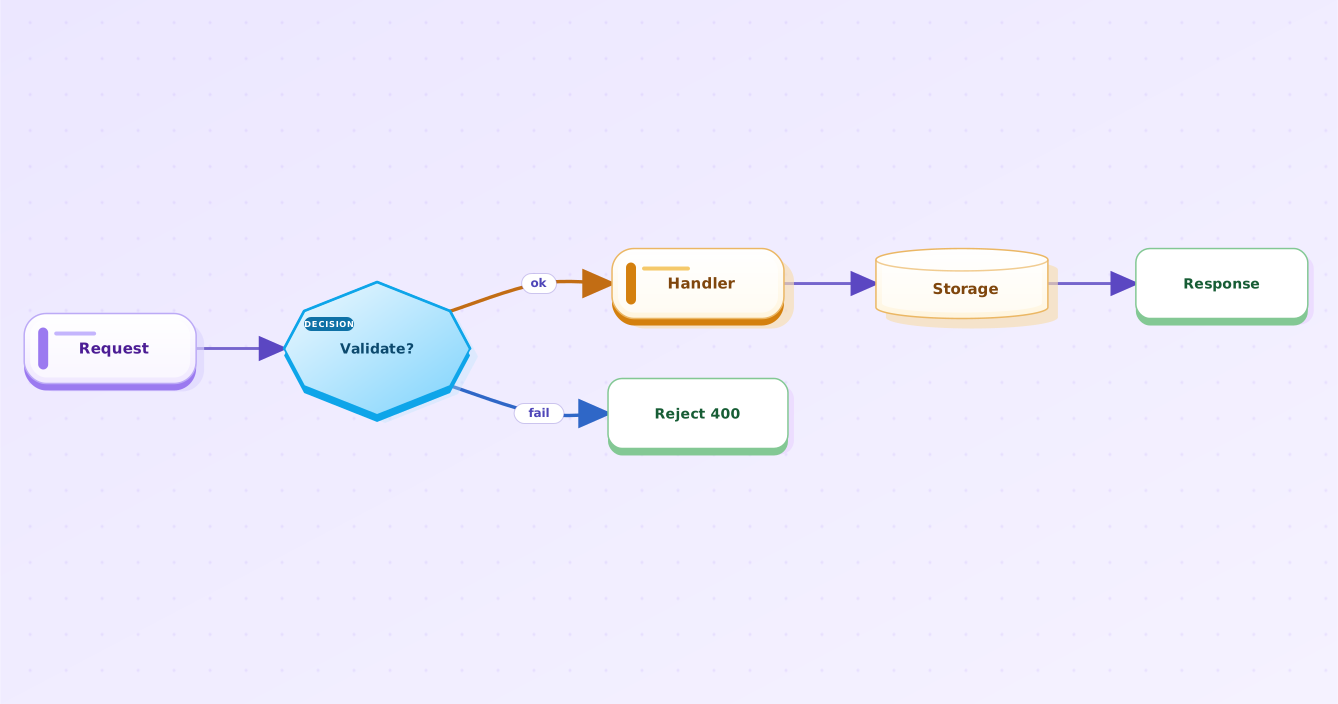
Classic. The "neutral office doc" baseline — fine for most internal docs, deliberately quiet.
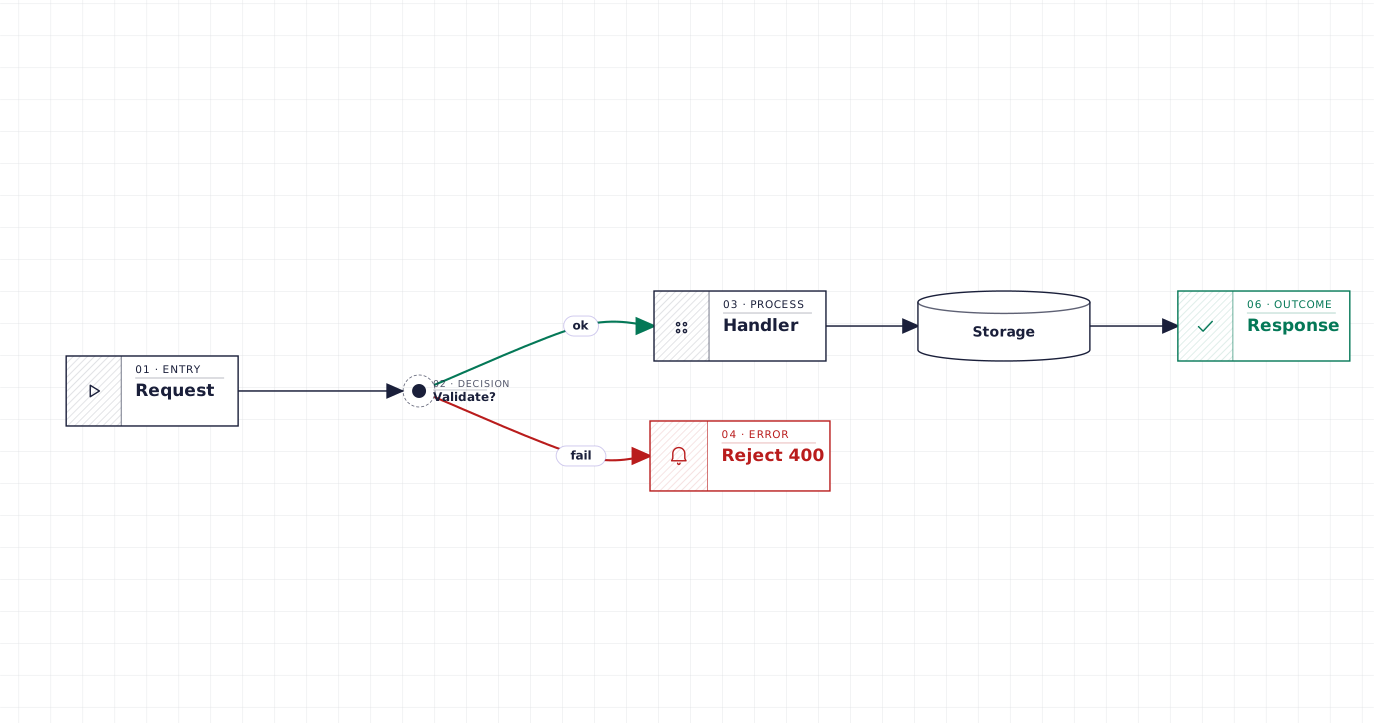
Blueprint. For engineering deep-dives where you want the diagram to read as a schematic.
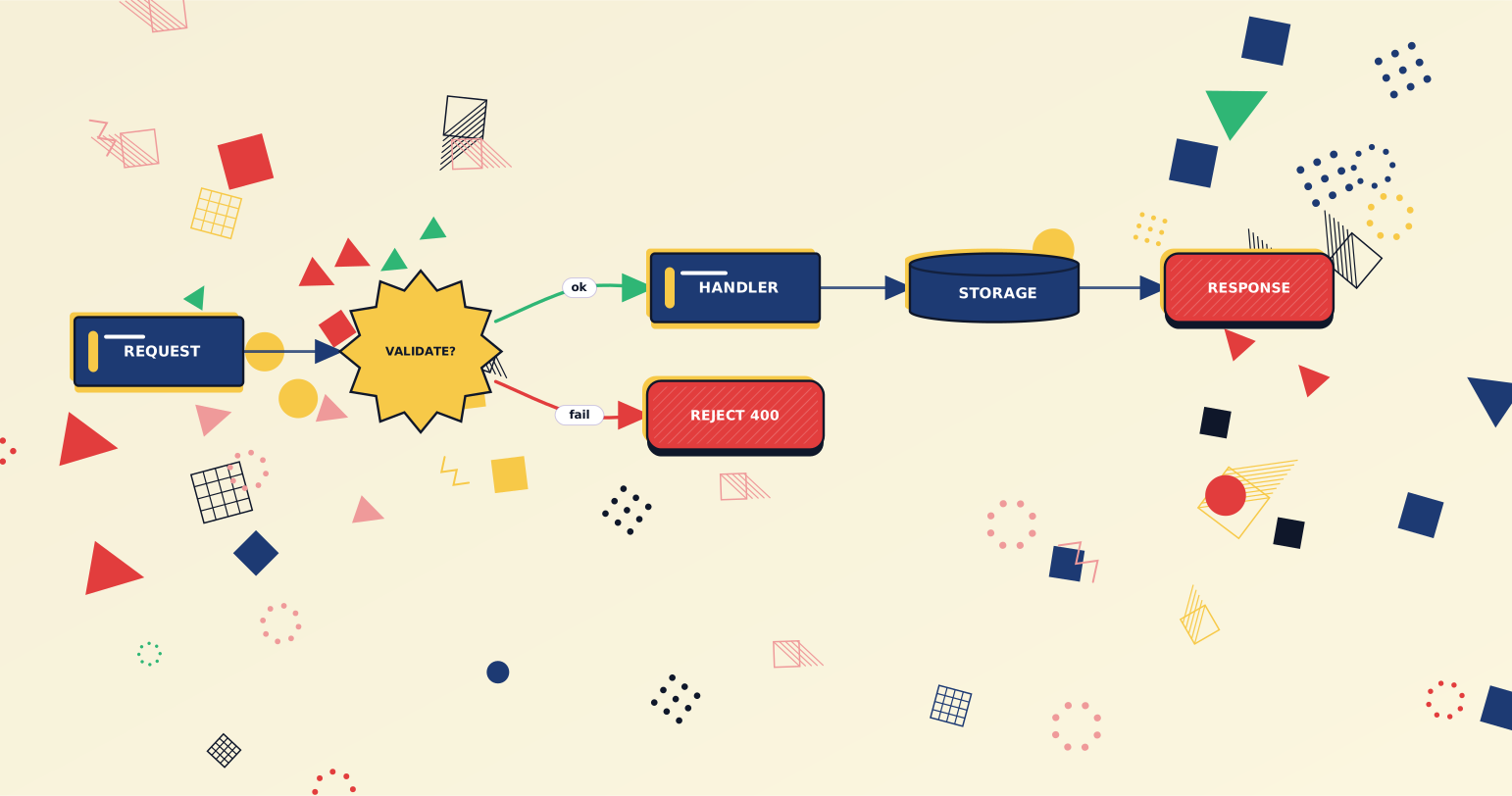
Memphis. For docs that aren't trying to look corporate — blog posts, launch announcements, post-mortems with personality.
Same source, three rendering choices. The trick isn't the styling; it's that the source stayed identical and the renderer absorbed the visual decision.
When the open-source tricks are enough
Most of the time they are. If a single doc has one or two Mermaid blocks, learning classDef, linkStyle, and the init prelude is faster than picking up any external tool. Use the ten tricks above, ship the diagram, move on.
The three signals it's worth graduating to a renderer pick (trick 10):
- You're pasting the same
%%{init}%%prelude into ten or more blocks. That's a renderer config waiting to happen. - The diagram needs to live somewhere the surface controls the theme — GitHub README, Notion embed, doc site. Per-block init doesn't apply; renderer-level theming does.
- Multiple contributors are editing the same diagrams. Per-block init is fragile under copy-paste; renderer config is set once.
Wrap-up
Three things to take away:
- Mermaid has more in-syntax features than the tutorials cover. Comments,
classDefinheritance, click handlers, init themes — all stock, all worth two minutes to learn. - Style only the things that carry meaning. Per-edge
linkStyle, per-nodestyle, zoned subgraphs — each one earns its keep by routing the reader's attention; default-everywhere is the failure mode. - When you're pasting the same style preamble into every block, the renderer is the right place to fix it. Per-block init is the open-source baseline; renderer-level theme picking is the next step up.
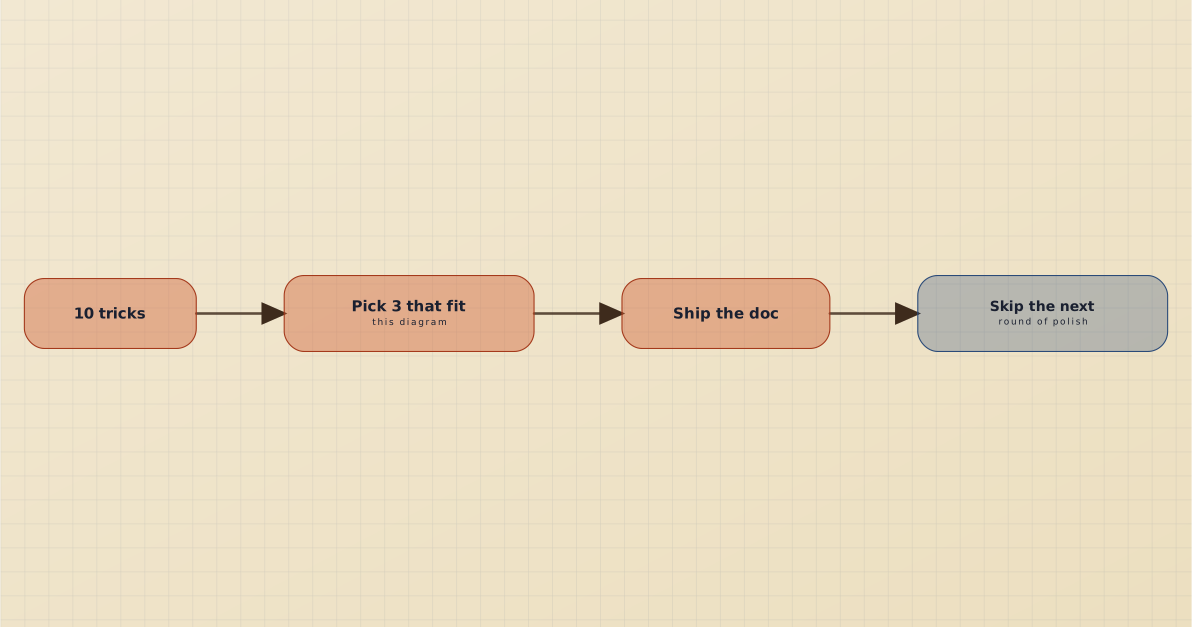
The shortest path through the post: read once, apply 3 tricks to the diagram you're touching today, don't re-do this exercise on the same file later.
If this was useful, drop a ❤️ and follow — I'm posting weekly on diagrams, docs, and developer ergonomics. Next week: Adding Beautiful Diagrams to Your Docusaurus / VitePress Site.
Of these ten, which one did you already know but never use? I'm curious whether classDef inheritance is rare-but-loved or just rare.
Continue reading
Which Tools Support Mermaid Natively? A Checked List
GitHub, GitLab, Notion, Obsidian, VS Code and Azure DevOps render Mermaid natively. Confluence, Slack and Google Docs do not. Every row checked against the vendor's own documentation.
Auto-Generate Architecture Diagrams in CI from Your Spec Files
Your architecture diagram is wrong because it's a hand-maintained copy of the system. Here's how to make it a projection instead — generated from files CI already keeps honest.